Getting a new phone is exciting, right up until the moment you realize you have to move everything from your old one. All those photos, your contacts, your messages, your apps, the settings you have fine-tuned over months and years. For a lot of people, this is the most stressful part of upgrading, because the fear of losing something precious, like family photos or important contacts, hangs over the whole process. I have seen people put off switching phones for months purely because they dreaded the transfer.
Here is the good news I want you to hold onto: moving to a new Android phone is far easier today than it used to be, and if you do it properly, you will not lose a single thing. Modern Android phones have built-in tools designed specifically to copy everything across, and with a little preparation, the whole process is smooth and even a bit satisfying. I have switched phones many times, and once you know the right steps, it becomes routine rather than frightening.
In this guide I will walk you through how to transfer data to a new Android phone from start to finish, in plain language. We will cover preparing your old phone, the easiest transfer methods, how to make sure nothing gets left behind, and what to check once everything is moved. By the end, you will be able to set up your new phone with confidence, knowing all your important stuff has come along for the ride.
Before You Start: Back Up Your Old Phone
The golden rule of switching phones is to back up your old device before you do anything else. Even though the transfer process itself is reliable, having a backup means that no matter what happens, your data is safe. Think of it as a safety net. If anything goes wrong during the move, or if you realize later that you missed something, your backup has you covered.
The easiest way to back up an Android phone is through your Google account, which quietly saves a great deal for you automatically. Go into your Settings, find the section for Google or for backup, and make sure backup is turned on. This typically saves your apps, contacts, call history, device settings, and more to your Google account. Let it run and complete fully, ideally while connected to Wi-Fi and charging, so the whole backup finishes without interruption.
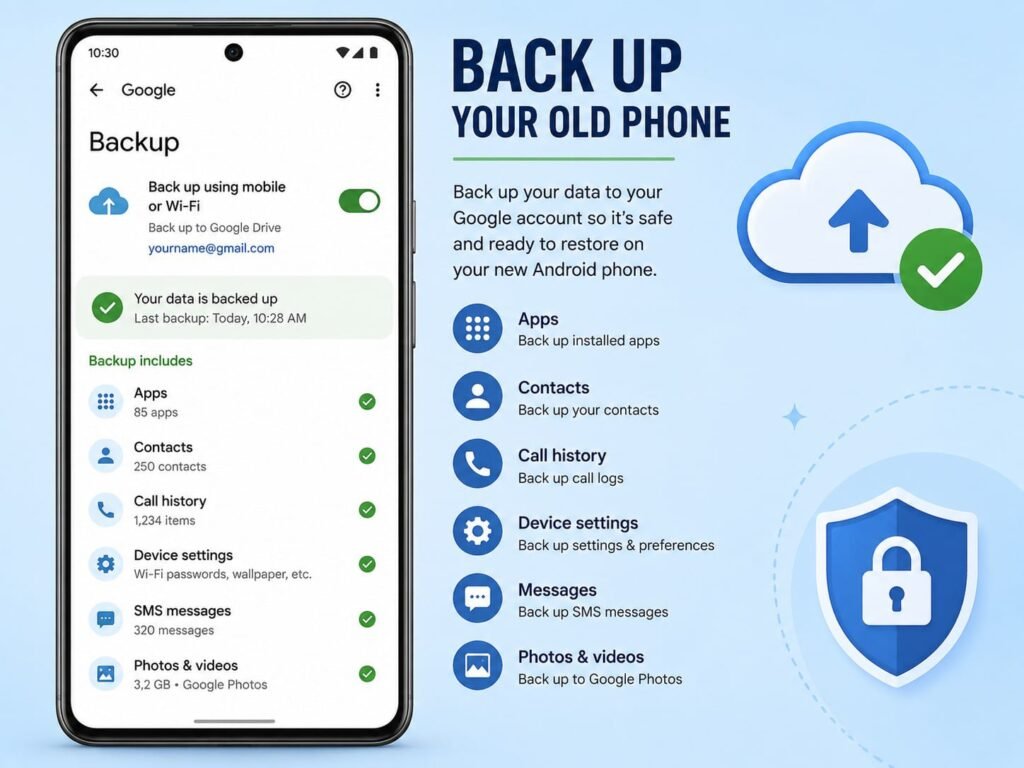
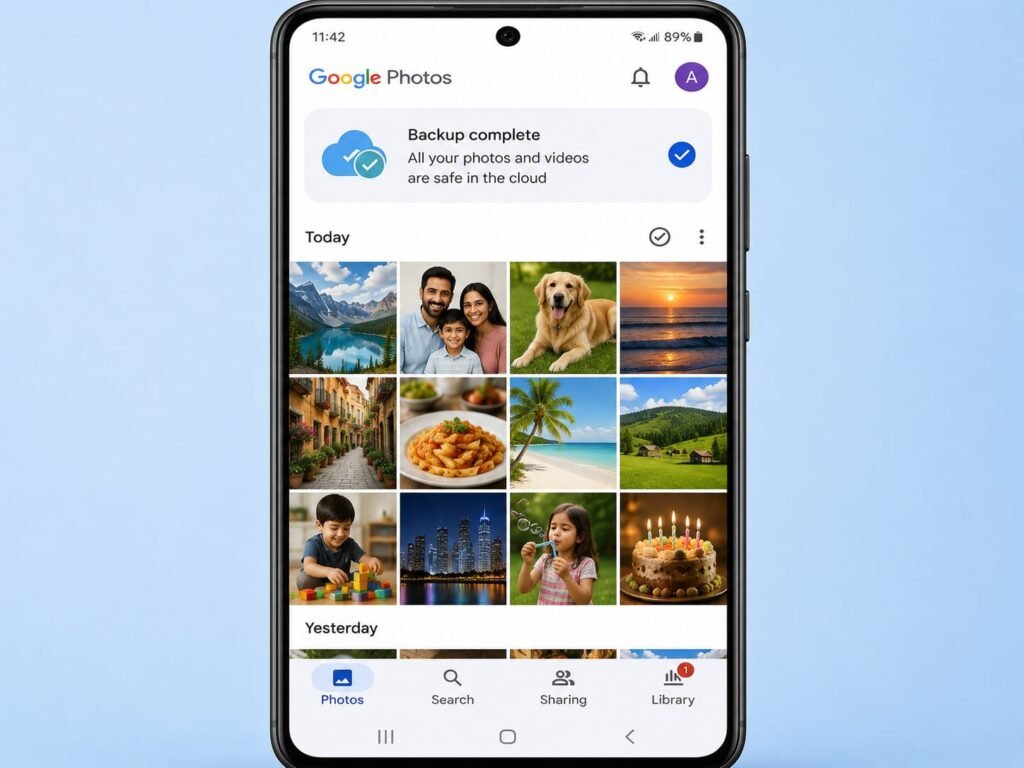
Separately, make sure your photos and videos are backed up, since these are usually the things people most fear losing. The simplest way is to use Google Photos and turn on its backup feature, which saves all your pictures and videos to the cloud. Once that is done, your memories are safe online and will be easy to access on your new phone. Take the time to confirm both backups have completed before moving on, because this single step removes almost all the risk from the entire process.
The Easiest Method: Use the Built-In Transfer Tool
When you switch on a brand new Android phone for the first time, it walks you through a setup process, and this is where the magic happens. Almost every modern Android phone includes a built-in tool during setup that offers to copy everything from your old phone directly to the new one. This is by far the easiest and most complete method, so I always recommend using it.
During the new phone’s setup, you will reach a screen asking if you want to copy data or apps from another device. Say yes. The phone will then guide you to connect your old and new devices, usually either with a cable that comes in the box or wirelessly over Wi-Fi. Once connected, you simply choose what you want to bring across, and you can select everything, including apps, contacts, messages, photos, call history, and settings. Then the phones do the work while you wait.
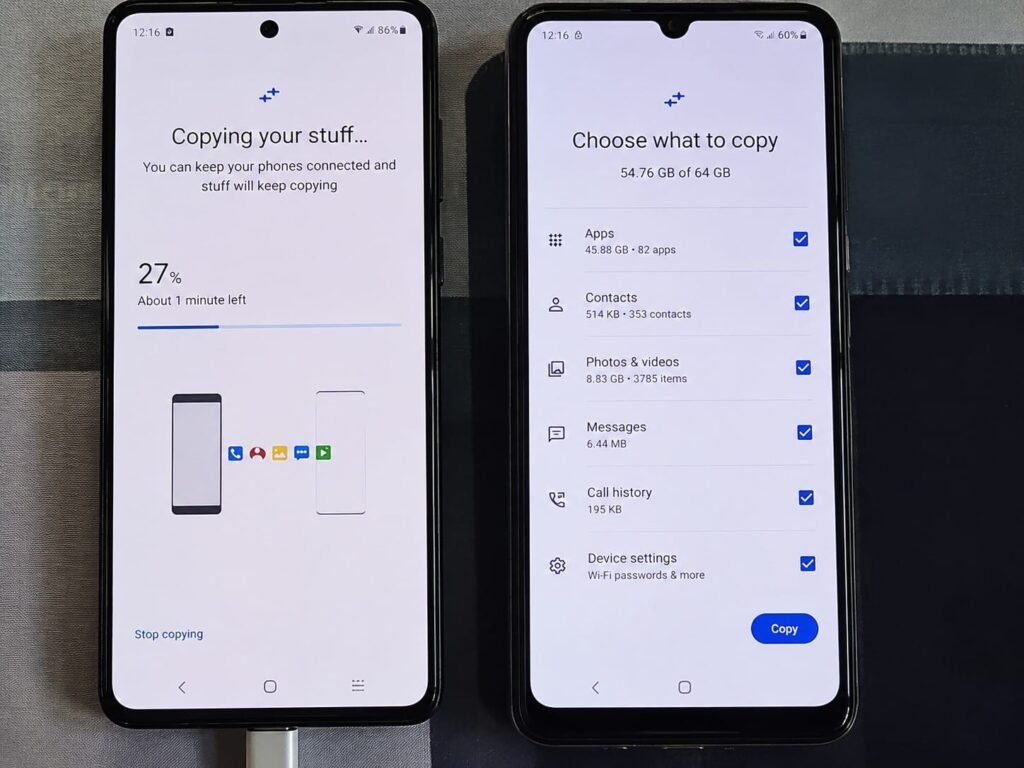
The time this takes depends on how much data you have, so a phone packed with photos and apps might take a while. Keep both phones plugged in and close together until it finishes, and resist the urge to interrupt it. This method is wonderful because it handles nearly everything in one go, and it is built and tested by the phone makers themselves, so it is reliable. If you have already set up your new phone and skipped this step, do not worry, because the methods below will still help you move your data across.
Using Your Google Account to Restore Data
If you backed up your old phone to your Google account, much of your data will come back simply by signing in on the new phone. This is the beauty of having everything tied to your Google account, and it works even if you missed the direct transfer tool during setup.
When you set up the new phone and sign in with the same Google account you used on your old phone, the phone offers to restore from your backup. Choose your most recent backup, and the phone will begin pulling back your apps, contacts, call history, and settings. Your contacts in particular sync automatically through your Google account, so they should appear without any extra effort once you are signed in. Your apps will redownload from the store, and many of them will restore their settings too.
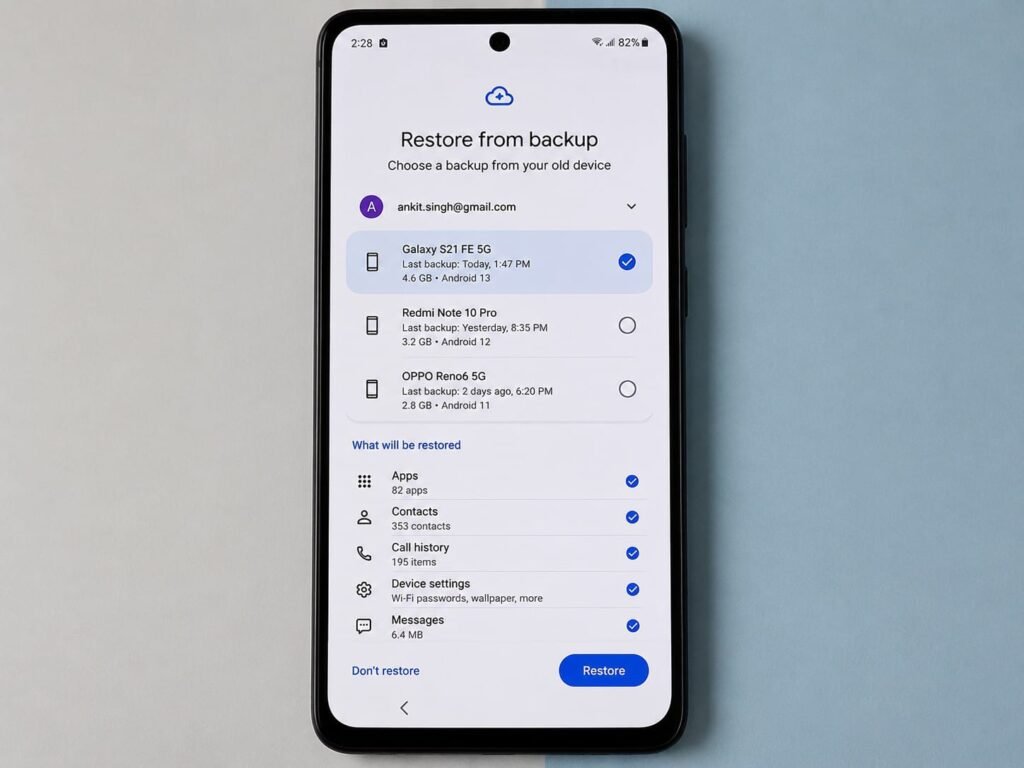
This account-based approach is reliable for the essentials, though it may not carry across absolutely everything, such as certain app-specific data or text messages, depending on your phone. That is why the direct transfer tool is still the best first choice when available. But signing into your Google account is an important step regardless, because it brings back your core data and reconnects all your Google services on the new device.
Moving Your Photos and Videos
Photos and videos are the data people care about most, so it is worth making absolutely sure they make it across safely. If you used the direct transfer tool, your photos likely came over already. But the most foolproof approach is to rely on cloud backup, because it keeps your memories safe and makes them instantly available on any device you sign into.
If you turned on Google Photos backup on your old phone as suggested earlier, then all you need to do is install or open Google Photos on your new phone and sign in with the same account. Every photo and video you backed up will be right there, ready to view and download. This is genuinely reassuring, because it means your pictures live safely in the cloud rather than depending on a single device. Even if something happened to either phone, your memories would still be safe.
If you prefer to keep your photos stored directly on the phone rather than in the cloud, you can also transfer them manually by connecting your old phone to a computer, copying the photo folders across, and then moving them to the new phone. This takes more effort but gives you a local copy. For most people, though, the cloud method is far simpler and safer.
Transferring Your WhatsApp and Chat Apps
Messaging apps like WhatsApp hold conversations and memories people really do not want to lose, and they need a little special handling because their chats are not always included in the standard transfer. The good part is that these apps have their own built-in backup and restore systems designed exactly for this.
For WhatsApp, the approach is to back up your chats on your old phone before switching, then restore them on the new one. On your old phone, go into WhatsApp’s settings, find the chats section, and back up your chats to your Google account. Then, when you install WhatsApp on your new phone and verify the same phone number, it will detect that backup and offer to restore your chats and media. Sign in with the same number, accept the restore, and your conversations come flooding back.
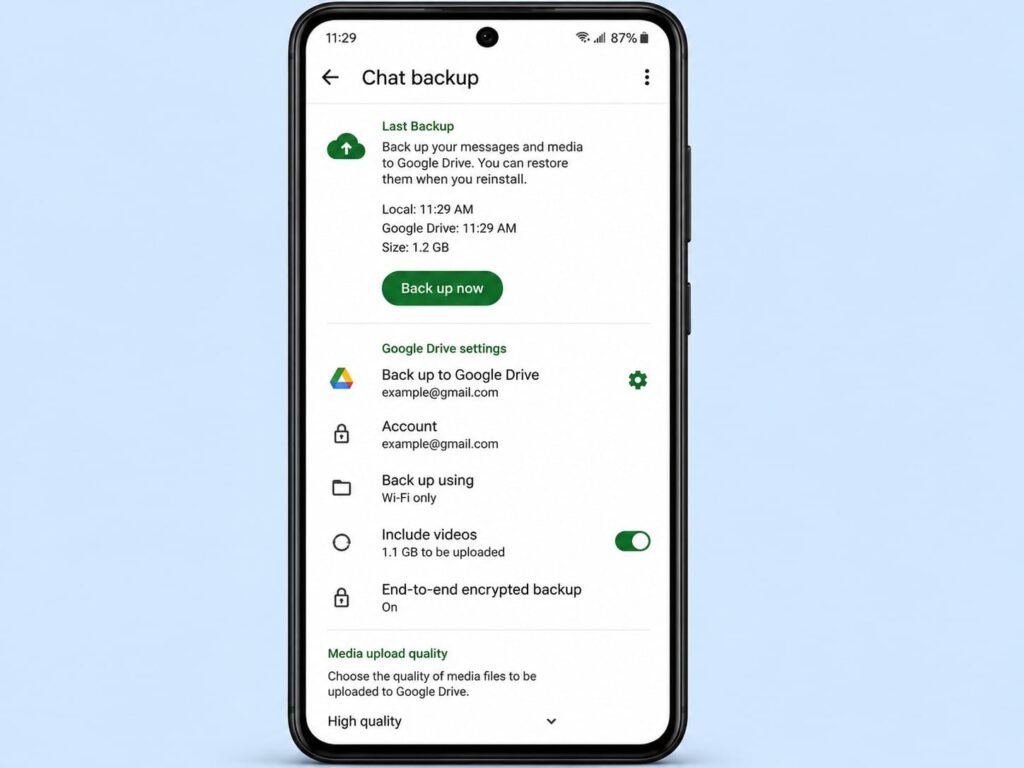
Do this carefully and in the right order, backing up on the old phone first and restoring during the fresh install on the new phone, because the restore option appears only during that initial setup. If you skip the backup or set up WhatsApp without restoring, recovering old chats afterward becomes much harder. So treat your chat apps as their own little transfer task and give them the attention they deserve.
What to Check After the Transfer Is Done
Once everything has moved across, it is tempting to dive straight in, but taking a few minutes to check that nothing was missed will save you headaches later. A quick review now gives you peace of mind and lets you catch anything that needs a second attempt while your old phone is still set up.
Go through your most important things one by one. Open your contacts and make sure they are all there. Check your photo gallery and confirm your pictures and videos came across. Open your key apps and sign in where needed, since some apps require you to log in again even after a transfer. Look through your messages, including WhatsApp, to confirm your conversations are present. And check that your accounts, like email, are connected and working.
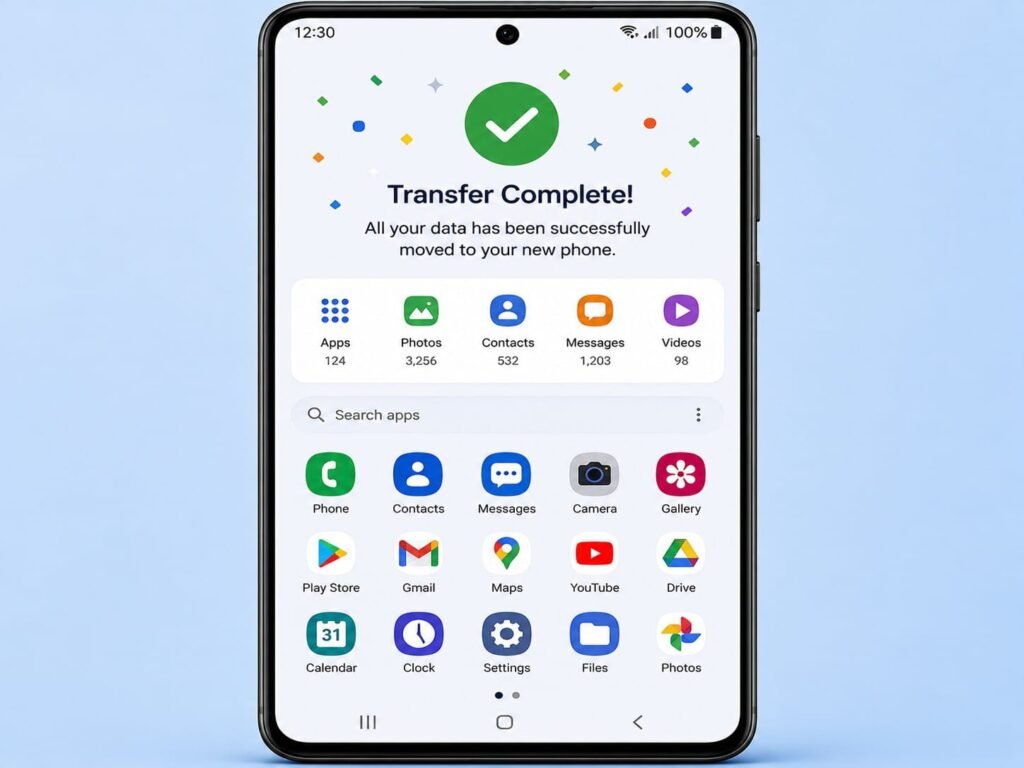
Keep your old phone fully set up and untouched for at least a few days after switching, just in case you discover something you missed. Resist the urge to wipe or sell it immediately. Only once you are completely confident that everything important is safely on your new phone should you consider erasing the old one. That little bit of patience is your final safety net.
A Few Tips to Make the Move Smoother
Beyond the main steps, a handful of small habits make the whole switch easier and less stressful. These are the things I have learned from doing this many times, and they smooth out the bumps that catch people off guard.
First, do the transfer with both phones charged and connected to Wi-Fi, because the process moves a lot of data and you do not want either phone dying or running up mobile data charges midway. Second, give yourself enough time and do not rush it when you are about to walk out the door, since a large transfer can take a while. Third, before you start, take note of any apps where you have important logins or two-factor authentication set up, as you may need to re-verify those on the new phone. Finally, this is a perfect moment to leave behind apps you no longer use, since you do not have to bring across every single thing. A fresh phone is a nice chance to start a little lighter.
Conclusion
Switching to a new Android phone does not have to be the stressful ordeal many people imagine. As you have seen, the whole thing comes down to a clear sequence: back up your old phone first, use the built-in transfer tool during setup whenever you can, sign into your Google account to restore your essentials, and give your photos and chat apps the little bit of extra care they need. Follow that path and everything important will make the journey safely.
The single most important habit is that first backup, because it turns the entire process from a gamble into a sure thing. With your data safely backed up, you can transfer with complete confidence, knowing that even if something hiccups, nothing is truly at risk. Take your time, check everything once you are done, and keep your old phone around for a few days as insurance. Do that, and you will be enjoying your new phone with all your photos, contacts, messages, and apps right where they belong. As always, exact menu names can vary a little depending on your phone brand and Android version, so if something is worded differently on your device, look for the closest match and you will find it.
Frequently Asked Questions
What is the easiest way to transfer everything to a new Android phone? The easiest method is the built-in transfer tool that appears when you first set up your new phone. It offers to copy your apps, contacts, messages, photos, and settings directly from your old phone, usually over a cable or Wi-Fi, and handles almost everything in one go.
Will I lose my photos when switching phones? Not if you back them up first. Turn on Google Photos backup on your old phone, and all your pictures and videos will be safely in the cloud, ready to appear on your new phone the moment you sign in with the same account. This is the safest way to protect your memories.
How do I transfer my WhatsApp chats to the new phone? Back up your chats to your Google account from within WhatsApp on your old phone first. Then install WhatsApp on the new phone, verify the same phone number, and accept the restore option when it appears during setup. Doing it in this order is important, as the restore prompt only shows during the initial install.
Do my contacts transfer automatically? Usually yes, because contacts saved to your Google account sync automatically. When you sign into the same Google account on your new phone, your contacts should appear on their own. It is still worth checking them after the transfer to make sure they all came across.
Should I erase my old phone right after transferring? No, wait a few days. Keep your old phone set up and untouched until you are completely sure everything important is safely on your new phone. Only once you have confirmed your photos, contacts, messages, and apps are all there should you consider erasing or selling the old device.