Block internet access for one specific app — without touching the rest of your phone
Some apps quietly burn data and battery in the background, or send information you’d rather they didn’t. Here’s exactly how to cut off just one app’s connection — with a built-in method for quick fixes, and a free app for full control. Works whether you’re following along on your phone or reading from a PC.
Why block one app’s internet instead of the whole connection?
Turning on airplane mode blocks everything. What you actually want is more surgical — one app silenced, everything else online as normal. Three common reasons people do this:
Save battery & data
Apps that sync, refresh, and phone home in the background are one of the biggest hidden drains on both your battery and your monthly data allowance.
Protect your privacy
Some apps only need internet to serve ads or ship your usage data off-device. Cutting their connection stops that traffic entirely, without deleting the app.
Stop unwanted notifications
Games and social apps that constantly ping you for attention go quiet once their connection is cut — no more badge counts or push alerts pulling you back in.
Two ways to do this
Method 1 uses a setting already built into every Android phone — no download needed, but it only blocks background data, not everything. Method 2 uses a free app that gives you a real, one-tap on/off switch per app, for both Wi-Fi and mobile data.
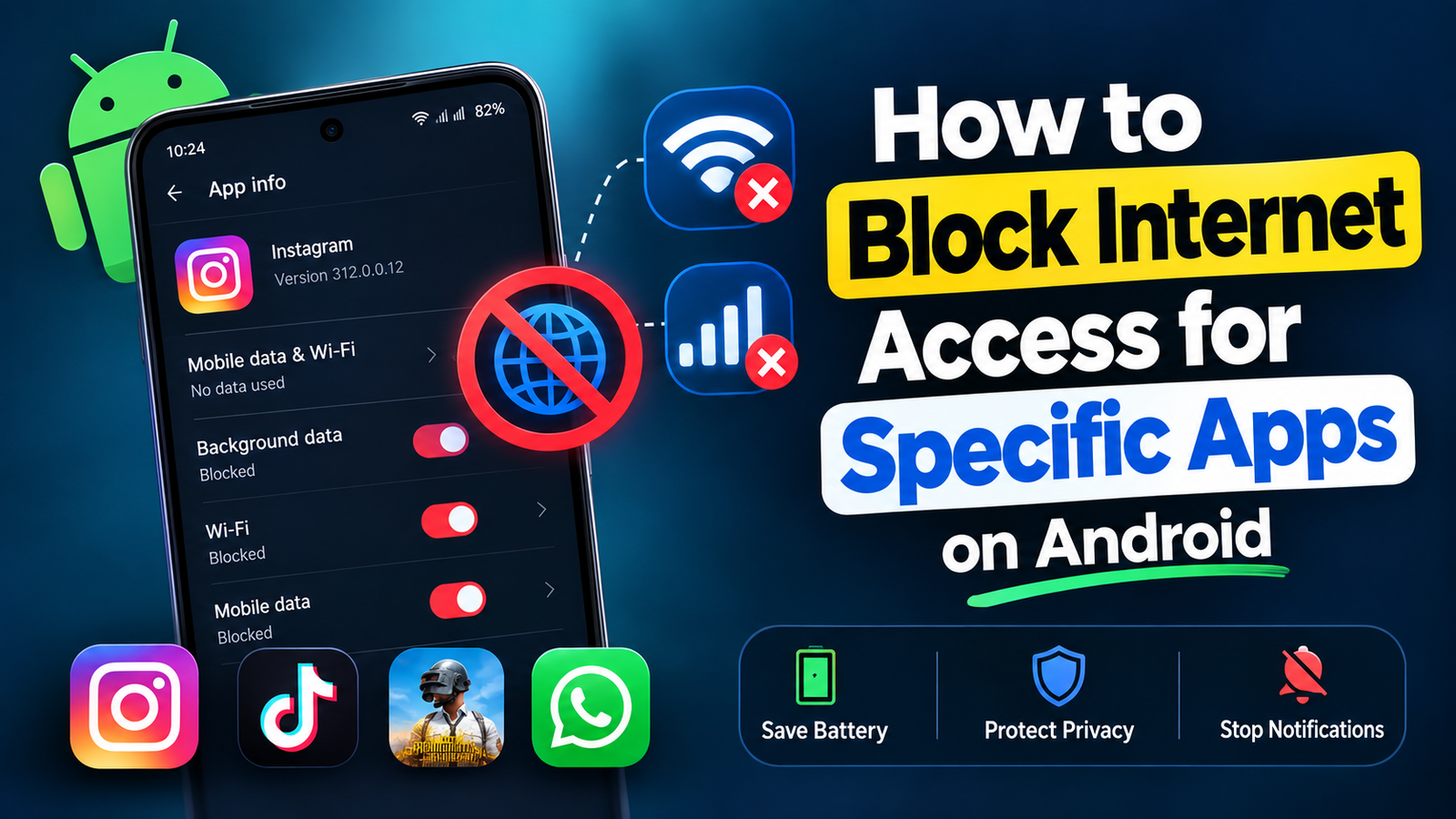
Open Settings → Apps
On your phone, open Settings, then tap Apps (some phones call this Apps & notifications). Find and tap the app you want to restrict.
Tap “Mobile data & Wi-Fi”
Inside the app’s info page, look for Mobile data & Wi-Fi or Data usage. This screen shows exactly how much data the app has used recently.
Turn off background data
Disable Background data to stop the app using internet when you’re not actively in it. On some phones you can also toggle Wi-Fi and Mobile data separately.
The limit of this method: it only blocks the app in the background. If you open the app while on Wi-Fi or mobile data, it can still connect. For a true, always-on block that works even while the app is open, use Method 2 below.
Install NetGuard from the Play Store
Download the app using the card further down this page, or search NetGuard on the Play Store. It’s free, open-source, and needs no root access.
Allow the local VPN permission
When you first open NetGuard and tap the power icon, Android will ask to set up a VPN connection. This is a local, on-device VPN used only to filter traffic — your data never leaves your phone or passes through an external server.
Find the app in the list
NetGuard shows every installed app with a Wi-Fi icon and a mobile data icon next to it. Scroll or search to find the one you want to restrict.
Tap to block Wi-Fi and/or mobile data
Tap the Wi-Fi icon to block it over Wi-Fi, the mobile data icon to block it over cellular data — or both, for a complete block. A colored icon means allowed; a greyed-out icon means blocked.
Turn on the master switch
Flip the main switch at the top of the NetGuard screen (or in the notification shade) to activate filtering. Your per-app choices only take effect once this is on.
Our pick: NetGuard — no-root firewall
There are several apps that do this job. We recommend NetGuard because it’s completely free, fully open-source, has no ads, and doesn’t request unrelated permissions — it just blocks traffic, nothing else.
- Block Wi-Fi and mobile data separately, per app
- No dangerous permissions requested
- Works on Android 5.1 and newer
- Notifies you when a new app is installed
- Doesn’t route traffic through an external server
- Light and dark themes included
Good to know: Android only allows one VPN connection active at a time. If you already use a separate VPN app, turn it off before switching NetGuard on — the two can’t run together.
Which method should you use?
| Capability | Built-in setting | NetGuard (app) |
|---|---|---|
| Blocks background data | Yes | Yes |
| Blocks data while app is open | No | Yes |
| Separate control for Wi-Fi vs mobile data | On most phones | Yes |
| Needs an install | No | Yes, free |
| One-tap master on/off | No | Yes |
| Works without root | Yes | Yes |
This guide works the same on desktop
Everything above is written for your Android phone’s own screen — you don’t need the phone connected to a PC. If you’re reading this article on a computer while your phone sits beside you, just follow each numbered step directly on the phone as you read along here. There’s no PC software required for either method; NetGuard and the built-in Android setting both run entirely on the device itself.
FAQ
Usually not for messaging apps like WhatsApp or Messenger — Android delivers their push notifications through Google Play services in the background, separately from the app’s own connection. To stop those too, you’d also need to restrict Google Play services, which isn’t recommended since many other apps rely on it.
NetGuard is built to be lightweight and runs as a local filter rather than a full VPN tunnel, so the battery cost is minimal for most people. Just make sure battery optimization isn’t allowed to kill it in the background, or your blocks may stop working after the phone sleeps.
No. NetGuard uses Android’s VPN framework only as a way to intercept and filter traffic locally on your device — it does not send your data to any external server, unlike a traditional VPN service.
Yes. Both methods let you repeat the steps for as many apps as you like — there’s no limit to how many you can restrict at the same time.