How to Manage Your Entire Wi-Fi Network with the Fing App
If you’ve ever wondered exactly how many devices are hogging your Wi-Fi, who that unfamiliar name on your router list belongs to, or why your internet slows to a crawl every evening, Fing is the app built to answer all three. It’s one of the most popular free network-scanning and Wi-Fi management tools available, used by over 35 million people to monitor, secure, and troubleshoot their home and office networks.
This article walks through what Fing does, its standout features, and how to get started.
What Is Fing?
Fing is a network scanner and Wi-Fi management app for Android and iOS. In seconds, it scans any network you’re connected to — home, office, or a public hotspot — and shows you a complete map of every connected device, along with performance data and potential security risks. It works with or without an account, though creating a free Fing account unlocks syncing, alerts, and device history across your devices.
Key Features
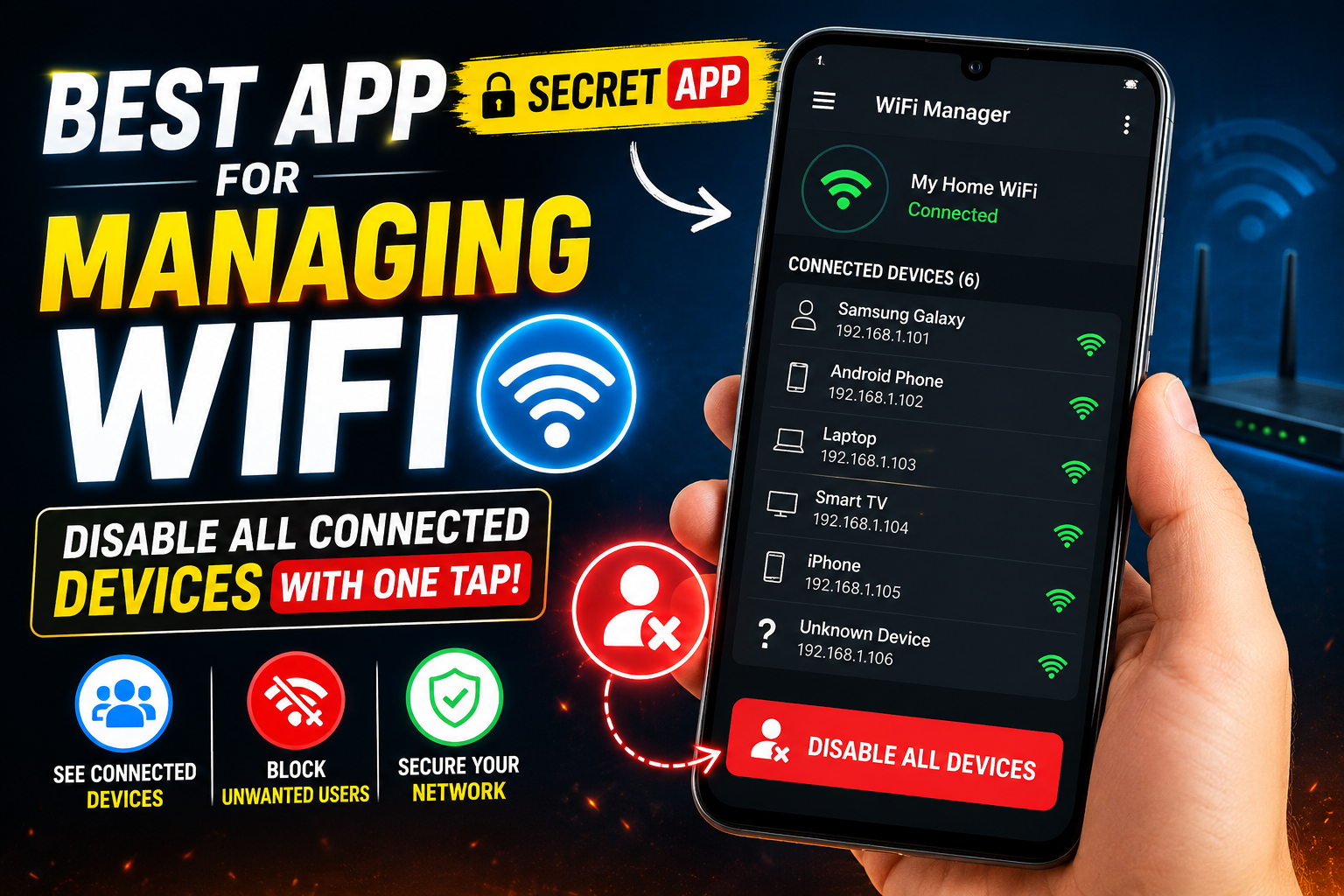
1. Full Network Device Discovery Fing scans your Wi-Fi and LAN to reveal every device connected to it — laptops, phones, smart TVs, printers, cameras, and IoT gadgets you may have forgotten about. Each device is identified with its IP address, MAC address, device name, model, and manufacturer, so nothing on your network stays a mystery.
2. Speed Testing Run Wi-Fi and cellular internet speed tests directly from the app, covering download speed, upload speed, and latency, so you always know how your connection is actually performing.
3. Advanced Device Analysis For more technical users, Fing digs deeper with NetBIOS, UPnP, SNMP, and Bonjour name resolution, plus tools like port scanning, ping, traceroute, and DNS lookup — useful for diagnosing tricky connectivity issues.
4. Security & Intrusion Alerts Fing sends push and email alerts whenever a new or unrecognized device joins your network, helping you catch intruders or unauthorized connections early.
5. Hidden Camera Detection A particularly handy feature for travelers: Fing can scan hotel rooms or rentals to help detect hidden cameras on the local network.
6. Remote & Multi-Network Access With a Fing account, your scans sync in real time, so you can check on your home network’s status even while traveling, and access your data from the Fing Web App or Fing Desktop.
7. Fingbox Integration (Optional Hardware) Pairing the app with a Fingbox device unlocks advanced controls: Digital Presence (see who’s home), Digital Fence (spot nearby devices), automatic blocking of intruders, parental controls for screen time and internet pausing, and per-device bandwidth analysis.
How to Use Fing to Manage Your Wi-Fi
- Download and open the app (link below) — no account required to start.
- Run a scan — Fing automatically detects your network and lists every connected device within seconds.
- Review your device list — rename unfamiliar devices, check their vendor info, and flag anything suspicious.
- Test your speed — run a quick speed test to confirm you’re getting what you’re paying for.
- Create a free account — enable alerts so you’re notified the moment a new device connects.
- Set up recurring scans — keep tabs on your network’s health over time rather than just checking once.
Why It’s Worth Installing
Most people never see what’s actually happening on their own Wi-Fi. Fing turns an invisible network into a clear, readable list of devices and data, making it far easier to spot problems, boot out unwanted guests, and keep your connection running smoothly — all without needing any networking expertise.
Download Fing
📲 Get it on Google Play: https://play.google.com/store/apps/details?id=com.overlook.android.fing
It’s free to download, with optional premium features available for those who want deeper control over their network.
Download App Now