Introduction
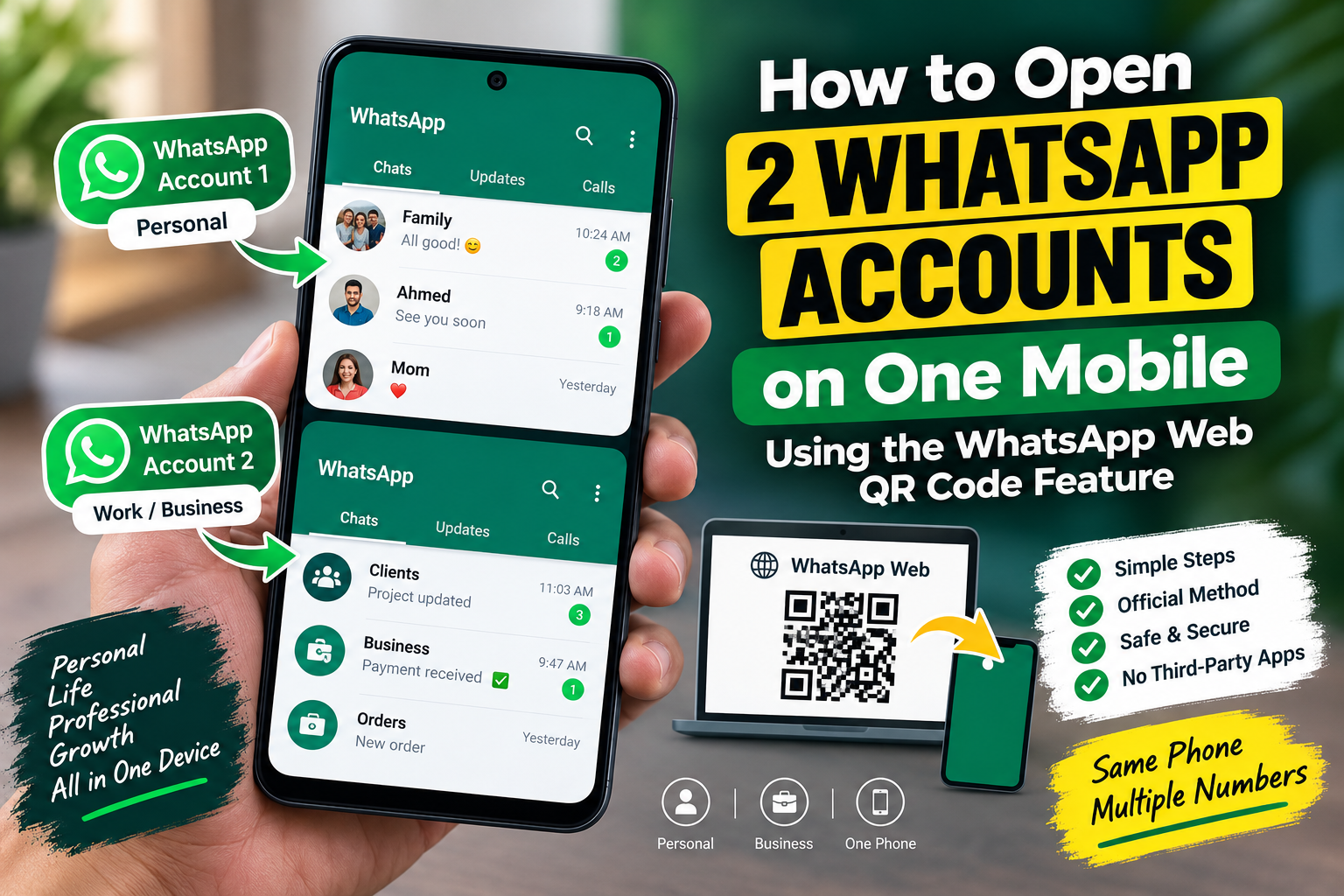
In today’s connected world, many people juggle two phone numbers — one for personal use and one for work, business, or a side project. Constantly switching SIM cards or carrying two phones just to manage two WhatsApp accounts is inconvenient. Fortunately, WhatsApp offers a simple built-in workaround that lets you run a second WhatsApp account on the same mobile device without needing a second physical device. This article explains, step by step, how to use the WhatsApp Web QR code feature to open and manage two WhatsApp accounts on a single phone.
Why You Might Need Two WhatsApp Accounts
Before diving into the method, it helps to understand why so many users look for ways to run dual WhatsApp accounts. Common reasons include:
- Separating personal and professional conversations
- Managing a business account alongside a personal one
- Using a secondary number for online marketplaces or classifieds
- Keeping a work number active while traveling
- Testing app features or automations without disturbing the main account
Whatever the reason, the good news is that WhatsApp itself provides a straightforward, official way to achieve this using the WhatsApp Web and QR code linking system — no risky third-party cloning apps required.
Understanding the WhatsApp Web QR Code Feature
WhatsApp Web was originally designed to let users access their WhatsApp chats from a computer browser by scanning a QR code with their phone. Over time, WhatsApp extended this same QR-linking technology to allow a phone to act as a companion device for another WhatsApp account, effectively letting one physical phone host two separate WhatsApp identities: the primary account installed normally, and a secondary account linked and accessed through a WhatsApp Web-style interface inside a browser or a secondary app slot.
The linked account works as a companion session. It mirrors the chats, messages, and media of the second number, and stays connected as long as the phone with the primary WhatsApp account remains active and connected to the internet at least periodically. This makes it an excellent lightweight solution for anyone who wants a second WhatsApp presence without installing modified or unofficial apps, which can pose serious privacy and security risks, including account bans.
What You Will Need
- Your primary phone with WhatsApp already installed and set up
- A second phone number (a second SIM card, a virtual number, or a friend/family member’s number for testing) that is not already registered on the same WhatsApp account
- A stable internet connection (Wi-Fi or mobile data)
- A modern web browser installed on your phone (Chrome, Safari, or any updated browser), since WhatsApp Web can be opened as a mobile website
Step-by-Step Guide to Setting Up a Second WhatsApp Account
Step 1: Open a Browser on Your Phone
On your Android or iPhone device, open your preferred mobile browser and navigate to web.whatsapp.com. Request the desktop version of the site if your browser defaults to a mobile layout, since the QR code scanner interface displays most reliably in desktop mode. Most browsers offer this as an option in the menu (three dots or the ‘aA’ icon in the address bar).
Step 2: Wait for the QR Code to Load
Once the page loads in desktop mode, WhatsApp Web will display a black-and-white QR code on the screen. This code is what your second phone number’s WhatsApp app will scan to create the linked session.
Step 3: Install and Open WhatsApp Using the Second Number
If you have a second physical SIM in a dual-SIM phone, you can install a second instance of WhatsApp using your device manufacturer’s app-cloning feature (commonly called ‘Dual Apps,’ ‘App Clone,’ ‘Parallel Space,’ or similar, found in Settings on most Android phones). Open this cloned WhatsApp app and register it using your second phone number, following the on-screen verification steps (entering the OTP sent via SMS or call).
If you do not want to install a second app instance, you can alternatively borrow a second phone briefly just to complete the linking step, or use the second number’s WhatsApp app on any other available device.
Step 4: Link the Second Account via QR Code
- Open WhatsApp on the second number’s app (or the cloned app instance)
- Tap the three-dot menu icon (Android) or Settings (iPhone)
- Select ‘Linked Devices’
- Tap ‘Link a Device’
- Point your phone’s camera at the QR code displayed on the web.whatsapp.com page in your primary phone’s browser
Within a few seconds, the browser tab will refresh and display the chats associated with your second WhatsApp number. You now have your second account accessible directly from your primary phone’s browser.
Step 5: Bookmark or Save the Session for Easy Access
To avoid repeating the QR scan every time, bookmark the web.whatsapp.com page or save it to your phone’s home screen as a shortcut. Most browsers allow you to ‘Add to Home Screen,’ which creates an app-like icon. As long as you don’t log out and the second phone (or device where the second app lives) stays connected to the internet periodically, the session will remain active, allowing you to send and receive messages from your second account directly through the browser shortcut on your primary phone.
Alternative: Using WhatsApp Business Alongside WhatsApp
Another simple option worth mentioning is that WhatsApp and WhatsApp Business are recognized by your phone as two separate apps, even though they function almost identically. If one of your two numbers is meant for business use, you can simply install WhatsApp Business from the app store and register your second number there, while keeping regular WhatsApp for your personal number. This avoids QR linking altogether and gives both accounts a full native app experience with independent notifications, media storage, and settings.
Helpful Tips for Managing Two WhatsApp Accounts
- Keep the source device online: If your second account is linked as a companion device (via QR code), that phone or app instance needs to connect to the internet occasionally, or the linked session may disconnect after an extended period of inactivity.
- Enable notifications for the browser shortcut: Some mobile browsers support push notifications for saved web apps, allowing you to receive alerts from your second account similarly to a native app.
- Use separate profile pictures and names: This makes it easy to visually distinguish between the two accounts at a glance, especially if you’re switching between browser tabs or app icons frequently.
- Log out securely when needed: If you ever stop using the second number or hand off the device, go to Linked Devices and log out remotely to protect your chat data.
- Avoid third-party ‘dual WhatsApp’ apps from unknown developers: Many of these apps are unofficial, insecure, and can violate WhatsApp’s terms of service, risking a permanent ban on your account. Stick to official methods like WhatsApp Web, Linked Devices, WhatsApp Business, or your phone manufacturer’s built-in app-cloning feature.
Troubleshooting Common Issues
QR Code Not Scanning
Make sure your camera lens is clean and that there’s adequate lighting. Also confirm that the browser page is fully loaded in desktop mode, since the QR code sometimes fails to render properly in a strictly mobile layout.
Session Keeps Logging Out
This usually happens if the source phone (where the second WhatsApp app lives) has been offline for too long, has low battery, or has aggressive battery-saving settings that shut down background apps. Whitelist WhatsApp in your battery optimization settings on that device to keep the session alive longer.
Notifications Not Appearing
Browser-based sessions sometimes have limited notification support depending on your phone’s operating system. If real-time alerts matter to you, the WhatsApp Business app method (registering your second number as a fully separate native app) will generally provide more reliable notifications than the browser-linked approach.
Open WhatsAppConclusion
Running two WhatsApp accounts on a single mobile device is easier than most people realize, and it doesn’t require jailbreaking your phone or installing suspicious third-party apps. By using the official WhatsApp Web QR code linking feature, or alternatively installing WhatsApp Business alongside your regular WhatsApp app, you can comfortably manage both a personal and a professional (or secondary) number from the same device. This approach keeps your data secure, complies with WhatsApp’s official policies, and gives you the flexibility to stay connected across multiple numbers without the hassle of carrying two phones.
Whether you’re a small business owner, a freelancer managing client communications separately from personal chats, or simply someone who values keeping work and life apart, this simple QR-based method offers a safe, effective, and completely official way to enjoy the convenience of dual WhatsApp accounts on one phone.