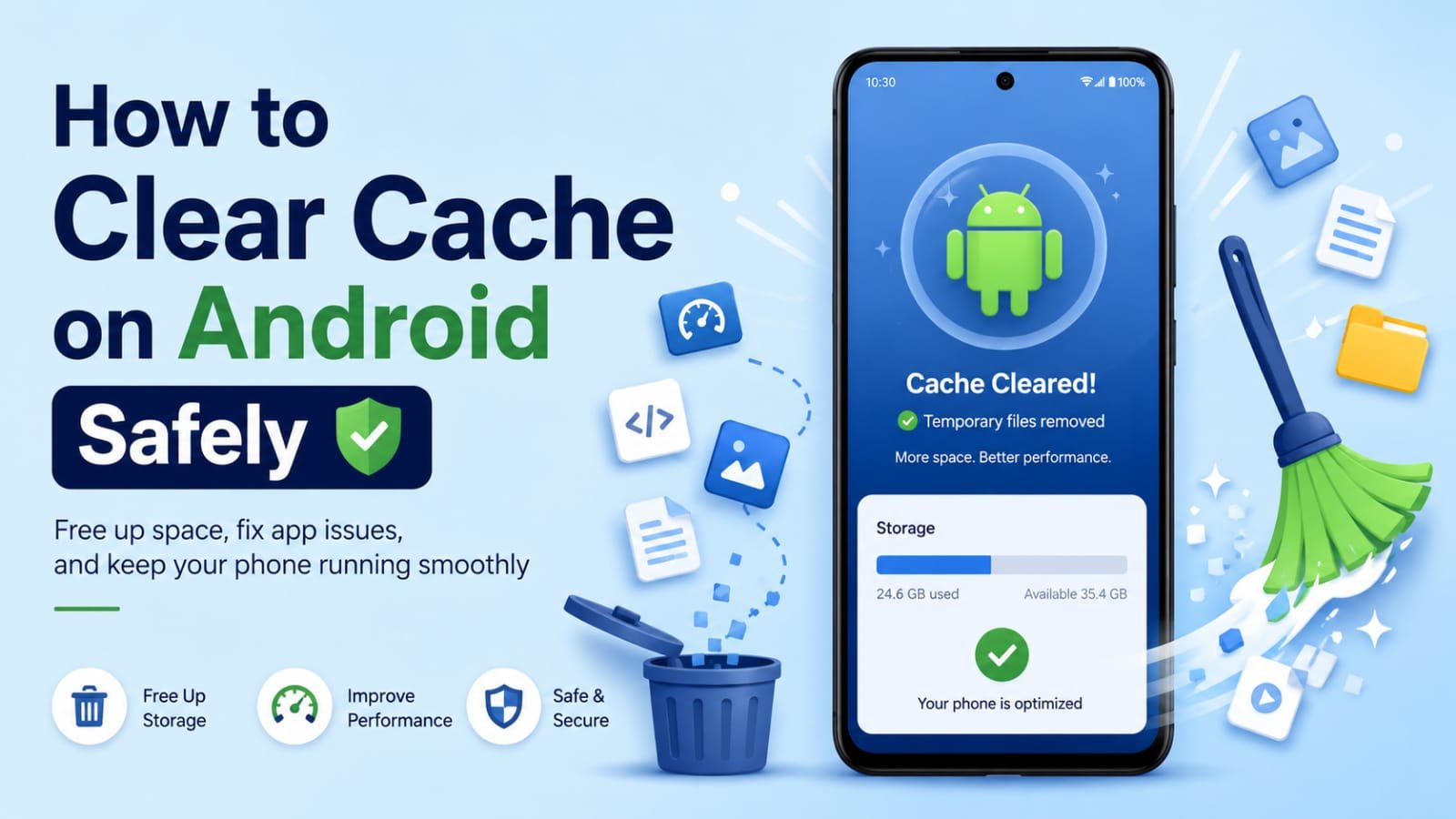
If you have spent any time looking for ways to fix a slow phone or free up space, you have almost certainly run into the advice to clear your cache. It gets repeated everywhere, and for good reason, because it genuinely helps. But here is what I have noticed over the years: very few people actually explain what cache is, why clearing it works, or how to do it without accidentally wiping something important. So they either avoid it out of fear or do it wrong and lose data they did not mean to.
I want to fix that with this guide. Clearing cache is one of the simplest and safest pieces of phone maintenance you can do, and once you understand it properly, you will reach for it confidently whenever an app misbehaves or your storage starts filling up. The key word there is safely, because there is one common mistake that trips people up, and I will make sure you never fall into it.
So whether your phone feels sluggish, an app keeps crashing, or you are just trying to reclaim some storage, learning how to clear cache on Android is a skill worth having. I will walk you through exactly what cache is, the different types you can clear, the step-by-step process for each, and most importantly, how to do it all without losing a single photo, message, or login. Let us start from the beginning.
What Is Cache and Why Does It Build Up
Before clearing anything, it really helps to understand what you are actually clearing, because it takes all the mystery and worry out of the process. Cache is simply a collection of temporary files that apps create to help themselves run faster. When you use an app, it saves little bits of data, things like images, thumbnails, and pieces of content, so that the next time you open it, those things load instantly instead of being fetched all over again.
Think of it like a cook keeping their most-used ingredients on the counter instead of fetching them from the pantry every single time. It makes everything faster and smoother, which is exactly why cache exists and why it is a good thing in normal amounts. The catch is that over weeks and months, these temporary files keep piling up. A heavily used app like a browser or a social media app can accumulate hundreds of megabytes, sometimes even gigabytes, of cached data. When that happens, the cache stops helping and starts taking up valuable storage, and occasionally the cached files become outdated or corrupted, which is what causes an app to behave strangely. Clearing the cache simply wipes those temporary files away, and the app rebuilds fresh ones as needed.
The Most Important Thing to Know Before You Start
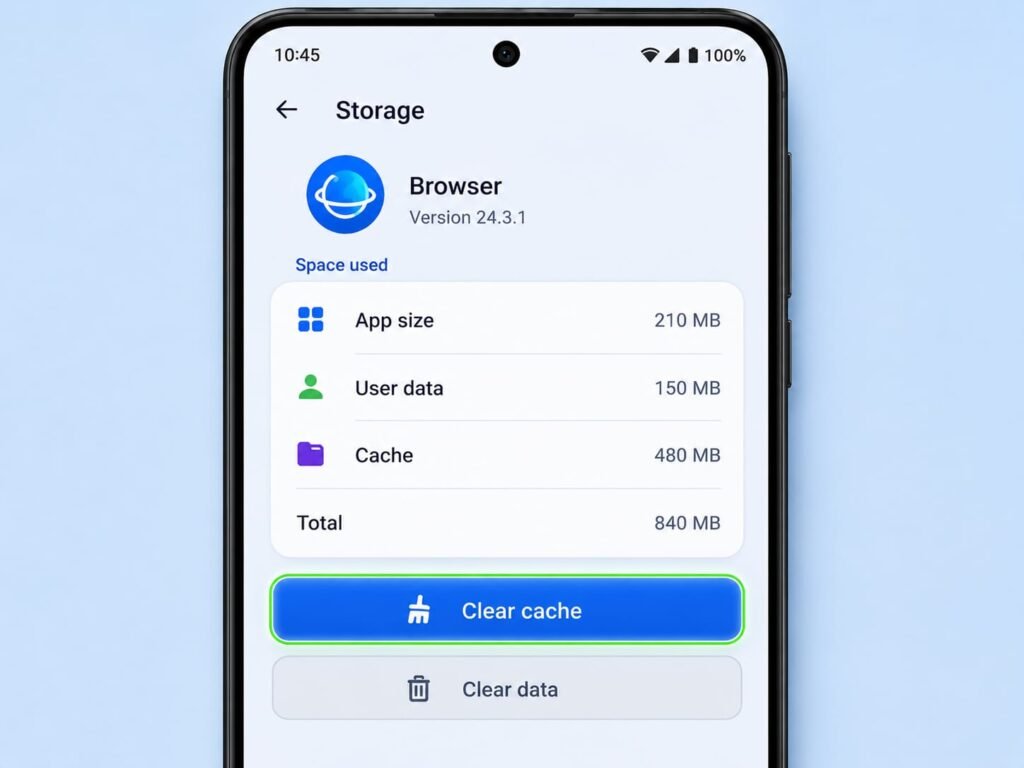
Before we get into the steps, I need to highlight the single most important point in this entire guide, because it is where people go wrong. On the screen where you clear cache, you will almost always see two buttons sitting close together: Clear cache and Clear data, sometimes called Clear storage. These two are completely different, and confusing them is the mistake that causes people to lose things.
Clearing cache is totally safe. It only removes the temporary files we just talked about, and it touches nothing you care about. Your photos, messages, logins, settings, and personal content all stay exactly where they are. Clearing data, on the other hand, wipes the app back to its freshly installed state. That means it can erase your login, your preferences, and any information stored inside that app. For something like a banking or messaging app, clearing data would log you out and reset everything.
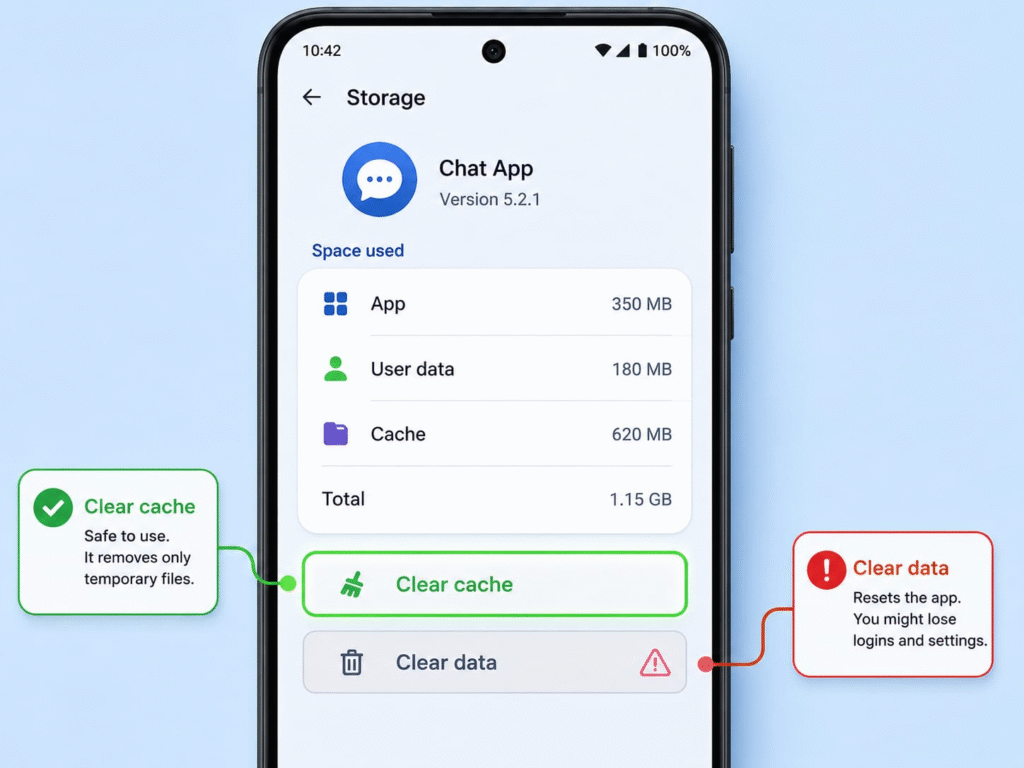
So the rule is simple and worth remembering: for routine cleanup and fixing minor glitches, always use Clear cache, never Clear data. Clearing data is only for when you specifically want to completely reset an app, and even then you should know what you might be logged out of first. Keep this distinction in mind and you can clear cache freely, knowing you are completely safe.
How to Clear the Cache of a Single App
The most common and useful thing you will do is clear the cache of a specific app, usually because that app is acting up or has grown too large. The process is quick and the same on most Android phones, with only small differences in wording between brands.
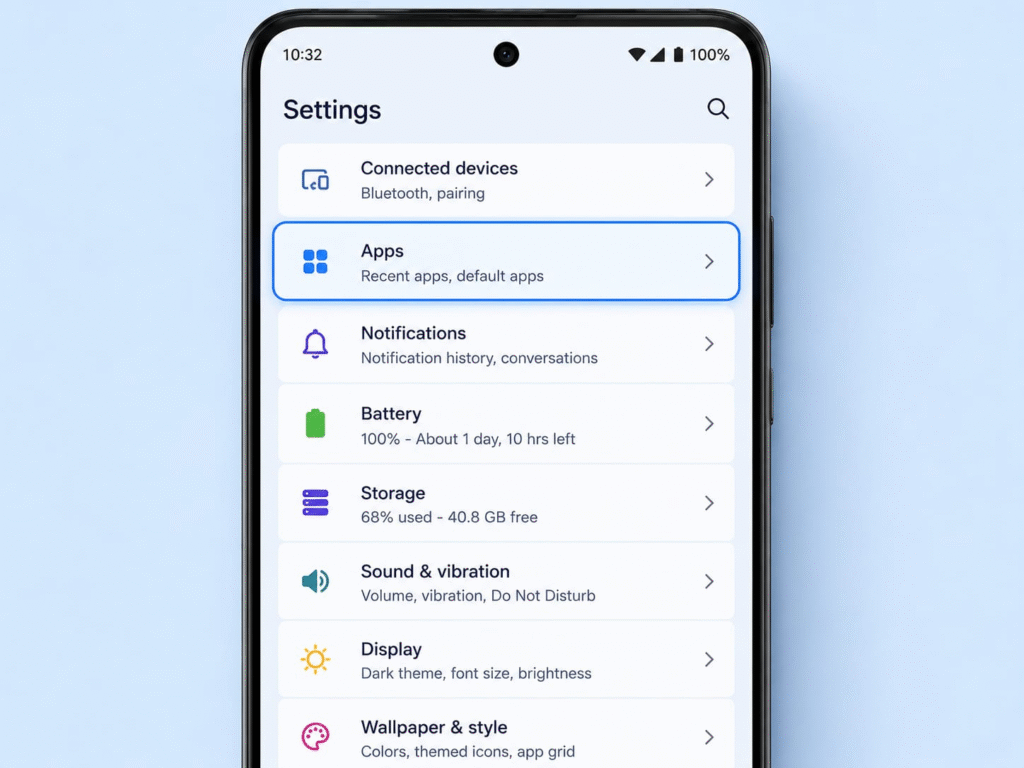
Start by opening your phone’s Settings. Scroll down and tap on the section called Apps, which on some phones might be labeled Apps and notifications or Application manager. This opens a list of every app installed on your phone. Find and tap the app whose cache you want to clear, which could be a browser, a social media app, or anything that feels sluggish or oversized. Once you are inside that app’s information page, look for an option called Storage, or Storage and cache, and tap it. This is where you will see exactly how much space the app and its cache are using.
On this storage screen, you will find the Clear cache button. Tap it, and you are done. The cached files vanish instantly, the storage they were using is freed up, and the app will quietly rebuild whatever it needs the next time you open it. You will not be logged out and nothing personal is lost. If you noticed the app was misbehaving, try opening it again now, as a fresh cache often resolves small glitches immediately.
Which Apps Are Worth Clearing First
You do not need to clear the cache of every single app, and there is no benefit to doing so. The smart approach is to focus on the apps that actually accumulate the most cache, because those are where you will reclaim the most space and solve the most problems.
Web browsers are usually the biggest cache hoarders, since they store pieces of every website you visit. Social media and video apps are close behind, because they cache countless images and video thumbnails as you scroll. Messaging apps and shopping apps also tend to build up sizable caches over time. When you open each app’s storage page, you can see exactly how much cache it is holding, so let that number guide you. An app sitting on several hundred megabytes of cache is a great candidate for clearing, while an app with a tiny cache is not worth bothering with. Targeting the heavy hitters gives you the most benefit for the least effort.
How to Clear Cached Data for the Whole Phone
Sometimes you want to clear up storage across your whole phone rather than going app by app. Older versions of Android had a single button to clear all cached data at once, but newer versions removed it in favor of the app-by-app approach, which is actually more precise. That said, your phone’s storage settings still give you a helpful overview and some useful tools.
Go into Settings and open the Storage section. Here you will see a clear breakdown of how your space is being used, including how much is taken up by apps and their data. Many phones, especially Samsung and others with their own software, include a built-in cleanup or device care tool right here that can clear temporary and junk files across the phone with a single tap. These built-in tools are safe to use because they are made by your phone’s manufacturer and they target only genuine junk, not your personal files.
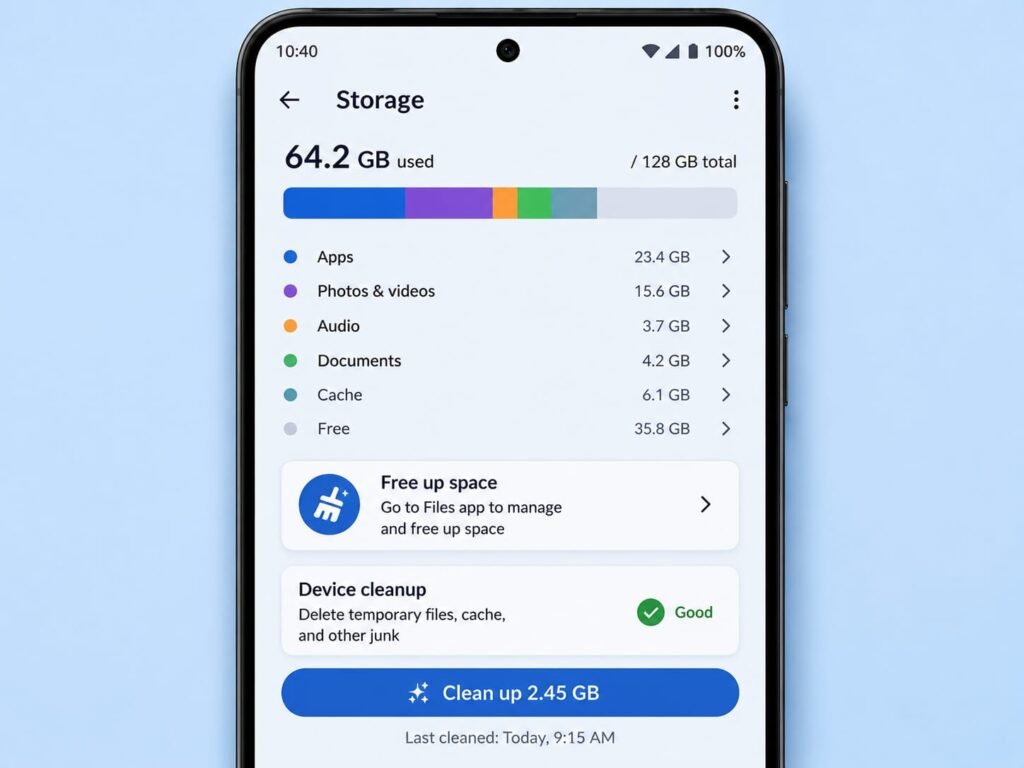
I recommend using your phone’s own storage tool rather than downloading a third-party cleaner app, which I will explain more about shortly. The native option is safer, comes with no ads, and does the job perfectly well for routine cleanup.
Clearing Your Browser Cache
Your web browser deserves special attention because it tends to hold one of the largest caches on your phone, and clearing it can fix a whole range of browsing problems. If web pages are loading strangely, showing outdated content, or not displaying properly, a clogged browser cache is very often the cause.
You can clear the browser cache in two ways. The first is the method we already covered, clearing the browser app’s cache through the phone’s Settings and Apps section. The second is to do it from inside the browser itself, which gives you more control. Open your browser, go into its settings, and look for a section about privacy or browsing data. There you will find an option to clear browsing data, where you can choose to clear cached images and files specifically.
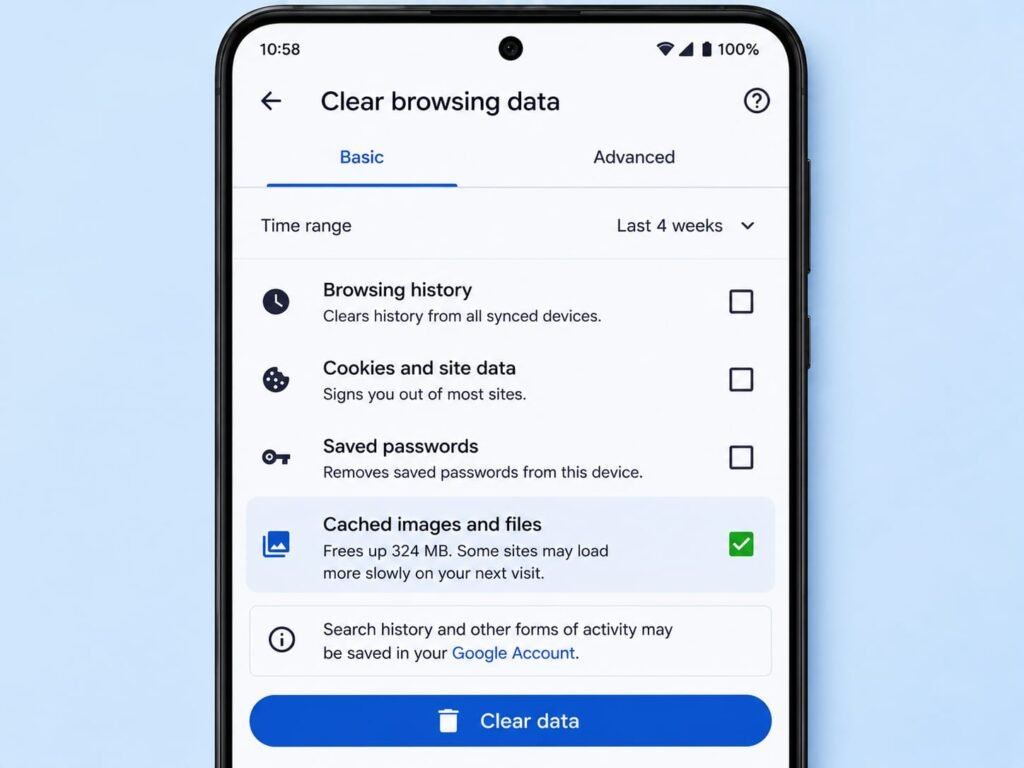
When you do this, pay attention to the options you tick. Clearing cached images and files is safe and is what frees up space and fixes display issues. But that same screen often includes options to clear your browsing history, saved passwords, and cookies. Be careful with those, because clearing cookies will log you out of websites, and clearing saved passwords removes them. So if your only goal is to clean the cache, make sure you select just the cached files option and leave the others unticked unless you truly want to clear them too.
When Clearing Cache Helps and When It Does Not
It is worth being realistic about what clearing cache can and cannot do, because it is sometimes treated as a magic fix for everything, which it is not. Knowing when it genuinely helps will save you from clearing cache pointlessly and expecting results it cannot deliver.
Clearing cache genuinely helps in a few clear situations. It frees up storage when an app has accumulated a large cache, which is great when you are running low on space. It fixes apps that are misbehaving, crashing, freezing, or showing outdated content, because a corrupted cache is a common cause of these glitches. And it can resolve a browser showing old versions of web pages. Those are the moments to reach for it. On the other hand, clearing cache will not dramatically speed up a phone that is slow for other reasons, it will not fix a genuine bug in an app, and it is not something you need to do constantly. In fact, clearing cache too often is mildly counterproductive, because the app simply has to rebuild it, which can briefly make things slower. Clearing cache every so often, or when a specific problem appears, is the sensible rhythm. There is no need to do it daily.
Why You Should Avoid Third-Party Cleaner Apps
Whenever the topic of clearing cache comes up, so do those flashy apps in the store promising to clean your phone and clear all your cache with a single magical tap. I want to steer you away from them, because in my experience they cause more problems than they solve.
These cleaner apps are typically stuffed with advertisements, and many of them run constantly in the background, which uses up the very resources and battery you are trying to save. Some even create their own junk over time. The irony is hard to miss: an app meant to clean your phone often ends up cluttering it. The truth is you simply do not need them. Everything we have covered in this guide, clearing individual app caches, using your phone’s built-in storage tools, and clearing your browser cache, is built right into your Android phone, is completely safe, and does the job better than any third-party cleaner. Trust your phone’s own tools and skip the cleaner apps entirely.
Conclusion
Clearing cache is one of those small maintenance habits that makes a real difference, and now that you understand it properly, you can use it with total confidence. Remember the heart of it: cache is just temporary files that help apps run faster, and clearing those files frees up space and fixes many minor glitches without touching anything you care about. The one rule that matters most is to always choose Clear cache and never Clear data when your goal is simple cleanup, and you will never lose a thing.
Make it a gentle habit rather than an obsession. When an app starts acting up, clear its cache first, since it often solves the problem in seconds. When your storage runs low, clear the cache of your biggest space-hogging apps like your browser and social media. And lean on your phone’s own built-in tools rather than downloading cleaners that do more harm than good. Do that, and you have a safe, reliable way to keep your phone running smoothly and your storage under control. As always, the exact menu names can vary a little depending on your phone brand and Android version, so if something is worded differently on your device, look for the closest match and you will find your way to it easily.
Frequently Asked Questions
Will clearing cache delete my photos, messages, or logins? No. Clearing cache only removes temporary files and leaves all your personal data untouched. Your photos, messages, logins, and settings stay exactly as they are. Just make sure you tap Clear cache and not Clear data, since Clear data is the option that resets the app.
What is the difference between Clear cache and Clear data? Clear cache removes only temporary files and is completely safe. Clear data, sometimes called Clear storage, wipes the app back to its freshly installed state, which can log you out and erase your settings inside that app. For routine cleanup, always use Clear cache.
How often should I clear my cache? There is no need to do it on a fixed schedule. Clear an app’s cache when it starts misbehaving, or clear the cache of your biggest apps when you are running low on storage. Doing it too frequently is pointless, since the app just rebuilds the cache afterward.
Why does my cache keep filling up again after I clear it? That is completely normal and not a problem. Cache is meant to rebuild as you use your apps, because it is what helps them run faster. A cache that refills is simply your apps working as intended. You only need to clear it again when it grows large or causes an issue.
Should I use a cleaner app to clear my cache automatically? It is best not to. Most third-party cleaner apps are full of ads and run in the background, which can slow your phone and drain battery. Your Android phone already has safe, built-in tools for clearing cache and junk files, which work better and come with none of the downsides.