Introduction
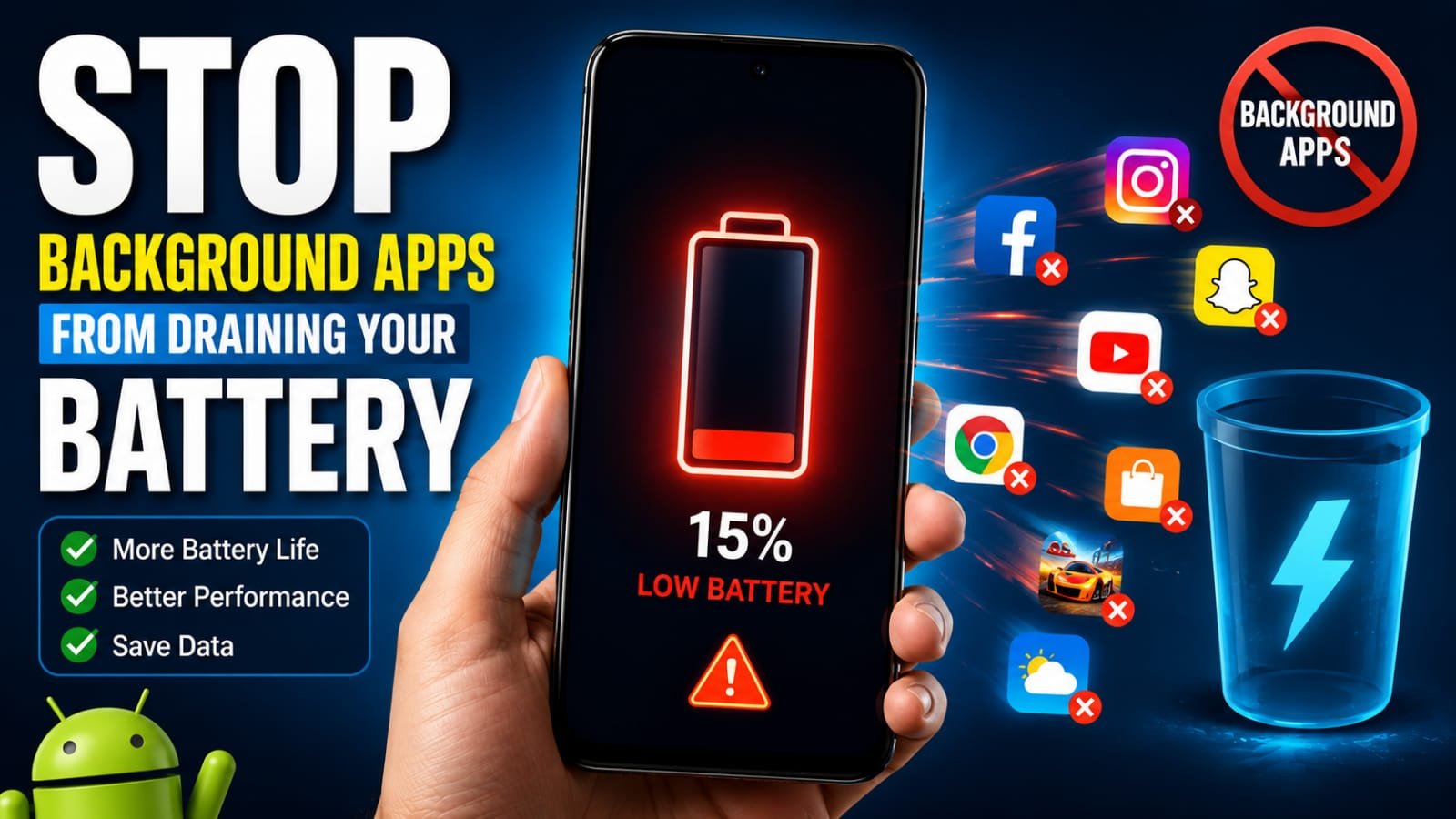
Have you ever charged your phone to full, barely touched it for a few hours, and then looked down to find the battery has quietly dropped by twenty percent for no reason you can see? You were not playing games, you were not watching videos, the phone was just sitting in your pocket. So where did all that power go? The answer, almost every time, is background apps.
Background apps are the programs that keep running even when you are not looking at them. They refresh their content, sync your data, check your location, and wake your phone up over and over, all without you ever opening them. A few of these are genuinely useful, like your messaging app quietly waiting to deliver a new message. But many of them have no real reason to be running around the clock, and together they can drain a shocking amount of battery while giving you nothing in return.
I learned this the hard way years ago, when I could not figure out why my phone kept dying by early afternoon. When I finally dug into the settings and saw the list of apps burning through my battery in the background, I was genuinely surprised. Apps I had not opened in weeks were near the top of the list. Once I learned how to find these culprits and rein them in, my battery life improved dramatically. So in this guide, I want to show you exactly how to stop background apps from draining your battery, step by step, using only the tools already built into your Android phone.
What Are Background Apps and Why Do They Matter
Let us start with what is actually happening, because understanding it makes everything else click into place. When you close an app by swiping it away or pressing the home button, it does not always fully stop. In many cases it keeps running quietly in the background, performing little tasks. Your email app checks for new mail. Your social media apps refresh your feed so it is ready when you open them. Weather apps update the forecast. Shopping apps check for offers.
On their own, each of these tasks is small. The problem is that modern phones have dozens of apps installed, and if even half of them are busy in the background, your phone is constantly working when it should be resting. Every time an app wakes the phone to do something, it uses a little processing power, a little data, and a little battery. Multiply that across many apps across an entire day, and you have a phone that drains far faster than it should. The same background activity also uses up your mobile data and can make the phone run a touch warmer, so reining it in helps in more ways than one.
First, Find Out Which Apps Are Draining Your Battery
You should never start restricting apps blindly, because some background activity is genuinely useful and you do not want to break the apps you rely on. The smart first move is to let your phone show you exactly which apps are the worst offenders, and Android keeps a detailed record of this for you.
Open your Settings and go to the Battery section. Somewhere in there you will find a breakdown of battery usage, often labeled something like Battery usage or App power usage. Tap into it, and you will see a list of your apps ranked by how much battery each has consumed. This list is the single most useful tool you have, because it turns guesswork into facts. Instead of wondering what is draining your battery, you can see it laid out clearly.
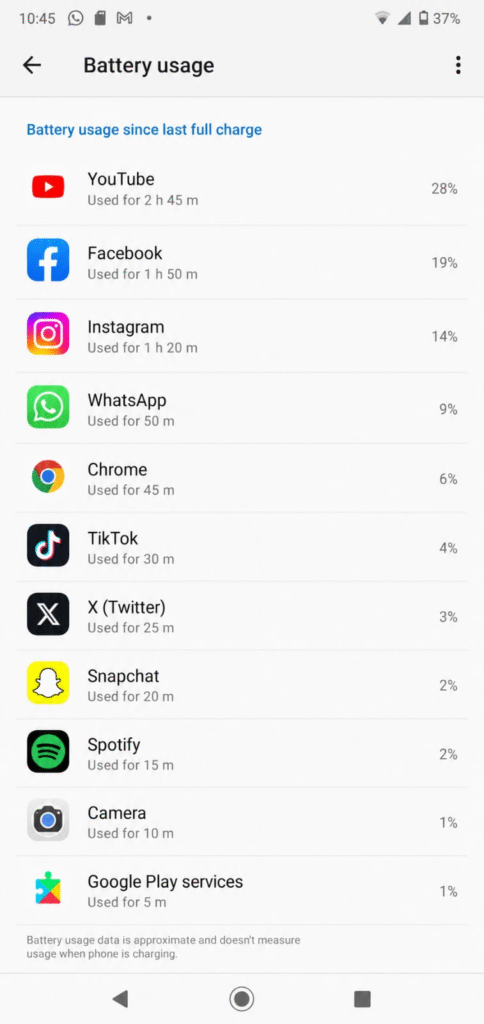
Look carefully at the apps near the top of the list. Some will make perfect sense, like the app you spent an hour using this morning. But keep an eye out for apps that are high on the list even though you barely opened them. Those are your real targets. An app you have not touched in days that is still somehow among your top battery users is exactly the kind of background drain you want to shut down.
Restrict Background Activity for Power-Hungry Apps
Once you have spotted an app that is draining battery in the background without good reason, the fix is wonderfully direct. Android lets you restrict what an app is allowed to do when you are not using it, so it can only run when you actually open it rather than constantly in the background.
To do this, tap on the offending app within the battery usage list, or find it through Settings, then Apps, and select the app. You will see options describing how the app is allowed to use battery, usually with choices along the lines of unrestricted, optimized, and restricted. Choosing the restricted or optimized option tells your phone to limit that app’s background behavior. The app will still work perfectly well when you open it; it just will not be allowed to run wild in the background eating your charge.
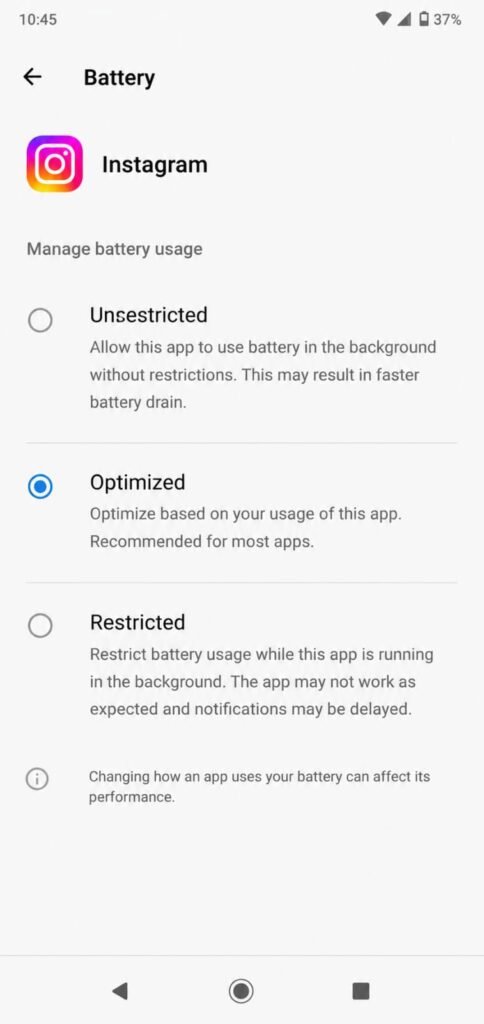
I usually set apps I rarely use to restricted, and leave the ones I use constantly on the optimized setting, which strikes a sensible balance. The beauty of this approach is that it is completely reversible. If you ever notice an app is not behaving the way you want after restricting it, you can simply come back and change the setting. Nothing here is permanent, so feel free to experiment.
Turn Off Background Data for Specific Apps
Battery and data go hand in hand, because a lot of background battery drain comes from apps quietly using the internet when you are not looking. If you want even tighter control, you can stop specific apps from using data in the background entirely, which cuts both their battery drain and their data usage at the same time.
Head into Settings, open Apps, and select the app you want to limit. Look for a section about mobile data or data usage, and inside it you will usually find a toggle for background data. Turning this off means the app cannot use the internet unless you have it open on your screen. This is perfect for apps that have no need to be constantly connected, like a game or an app you only check occasionally.
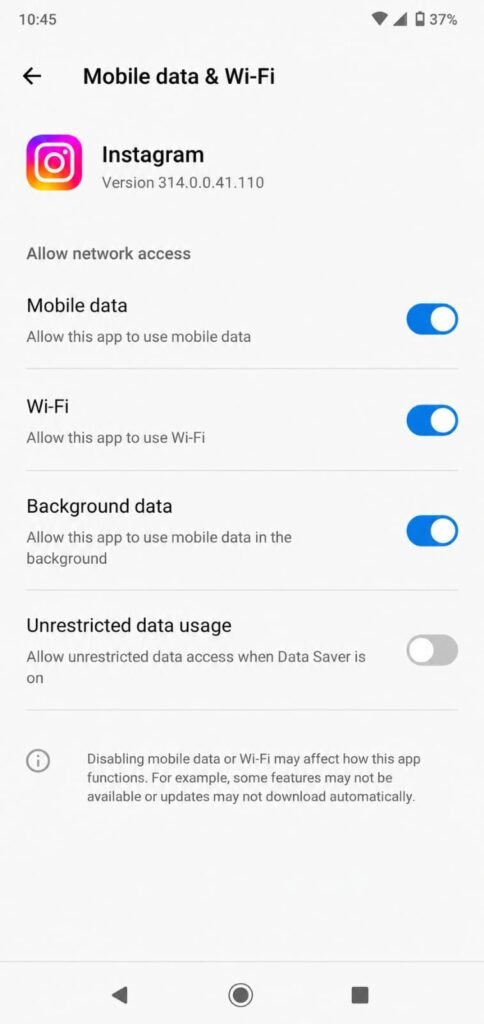
Just apply a little judgment here. For apps where you want instant notifications, such as your main messaging or email apps, leave background data on so they can deliver messages the moment they arrive. But for the many apps that do not need real-time updates, switching off their background data is an easy win for both battery and your monthly data allowance.
Manage Which Apps Sync Automatically
Many apps automatically sync in the background to keep their content up to date, and while this is convenient, it is also a steady source of battery drain. Your phone may be syncing several accounts and apps on a regular schedule throughout the day, each one waking the device and using a little power.
You can take control of this in your account and sync settings. Look in Settings under a section like Accounts or Users and accounts, where you will find options controlling automatic syncing. You can turn off auto-sync for accounts or specific app data you do not need constantly refreshed. For example, if you do not need a particular account syncing every few minutes, switching its sync off or reducing it can save a meaningful amount of power.
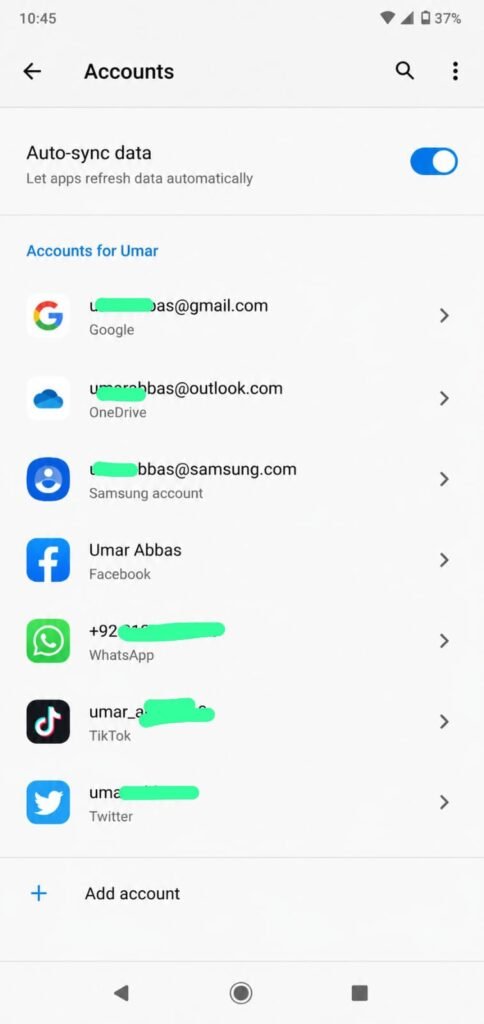
Be mindful that turning off sync for something like your primary email means it will not update until you open the app and refresh it manually. So keep auto-sync on for the accounts that matter to you for instant updates, and trim it back only for the ones where a slight delay makes no difference. It is all about matching the phone’s effort to what you actually need.
Use Your Phone’s Built-In Battery Optimization
Beyond handling apps one by one, most Android phones have a built-in battery optimization feature that manages background activity across all your apps at once. This is a smart, automatic system that learns how you use your phone and limits background activity for apps you rarely open, all without you having to micromanage each one.
You will usually find this in the battery section of your settings, sometimes labeled as battery optimization or adaptive battery. When you enable it, your phone intelligently decides which apps to rein in based on your habits, putting rarely used apps into a deeper sleep while keeping your favorites responsive. It is a wonderful set-and-forget tool that does a lot of the work for you in the background, which is fitting given the topic.
I keep this feature switched on at all times, because it handles the broad strokes automatically, and then I use the manual app restrictions we covered earlier for the specific worst offenders. Together, the automatic system and a few targeted manual tweaks give you excellent control over background drain.
Uninstall Apps You Never Use at All
Here is the simplest truth of all: an app that is not installed cannot drain your battery in the background. If you have apps sitting on your phone that you genuinely never use, the cleanest solution is not to restrict them but to remove them entirely.
Take a few minutes to scroll through all your apps and be honest with yourself about which ones you actually open. That game you finished months ago, the app you installed for a single task, the duplicate tools doing the same job. Uninstalling them removes their background activity completely, frees up storage, and gives your phone less to manage overall. And there is no risk involved, because anything you remove can be reinstalled from the app store for free whenever you truly need it again.
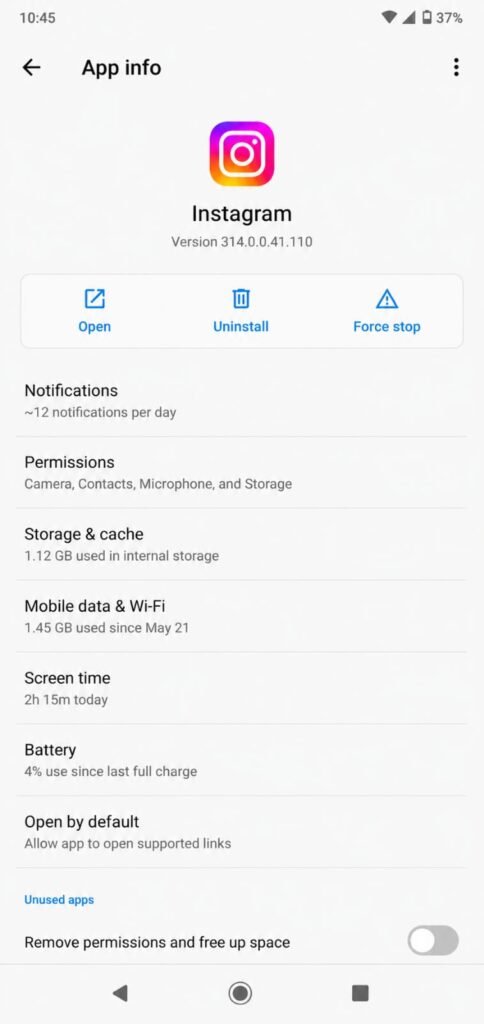
I make a habit of doing this little cleanup every month or so, and it keeps my phone lean. Every app you remove is one fewer thing quietly working away in the background, so this small habit pays off continuously rather than just once.
Watch Out for Apps That Resist Being Restricted
There is one more thing worth knowing. Some apps are persistent and will try to keep running in the background even after you restrict them, or they will repeatedly ask for permission to run freely. Social media apps and certain messaging apps are often the most stubborn about this, because they are designed to stay active so they can deliver updates instantly.
If you have an app that keeps draining battery despite your efforts, it is worth digging into that specific app’s own settings as well, since many apps have internal options for background refresh and notifications. Reducing how often the app refreshes its content from within the app itself can help where the system settings alone are not enough. The key is to weigh how much you actually value that app’s instant updates against the battery it costs you, and adjust accordingly. There is no single right answer, only the balance that suits how you use your phone.
Conclusion
Background apps are one of the biggest hidden causes of battery drain, but as you have seen, you hold all the tools to bring them under control. The whole process starts with one smart move: opening your battery usage list to see exactly which apps are the real culprits, rather than guessing. From there, restricting the worst offenders, switching off unnecessary background data, trimming automatic sync, and leaning on your phone’s built-in optimization will steadily transform how long your charge lasts.
The trick is to be selective rather than heavy-handed. Leave the apps you rely on for instant notifications alone, and focus your effort on the ones quietly draining power for no real benefit. Do that, and you keep everything you love about your phone while cutting out the waste. Start today by checking your battery usage and restricting just the top one or two surprises on that list. It takes only a few minutes, and the payoff in battery life is well worth it. As always, remember that menu names can vary a little depending on your phone brand and Android version, so if a setting is worded differently on your device, look for the closest match and you will find your way to it.
Frequently Asked Questions
How do I know which apps are draining my battery in the background? Open Settings, go to the Battery section, and look for the battery usage breakdown. It lists your apps ranked by how much power each has used. Apps that rank high despite you barely opening them are the background drains worth restricting.
Will restricting an app’s background activity stop my notifications? It can, for some apps, since restricting limits what they do when closed. For apps where you need instant notifications, like messaging and email, it is best to leave them on the optimized rather than fully restricted setting. For apps you rarely use, full restriction is usually fine.
Is it safe to turn off background data for apps? Yes, completely. Turning off background data simply means the app cannot use the internet unless you open it. Nothing breaks; the app just will not update on its own in the background. It is a great way to save both battery and mobile data.
Does closing apps from the recent apps screen save battery? Not as much as people think, and sometimes it even works against you, because the phone has to fully reload the app next time. Properly managing background activity through battery settings and restrictions is far more effective than constantly swiping apps away.
Should I use a battery saver app to control background apps? Generally no. Most third-party battery saver apps run in the background themselves and are full of ads, which adds to the drain. Everything you need is already built into your phone’s battery and app settings, which we have covered in this guide.