Introduction
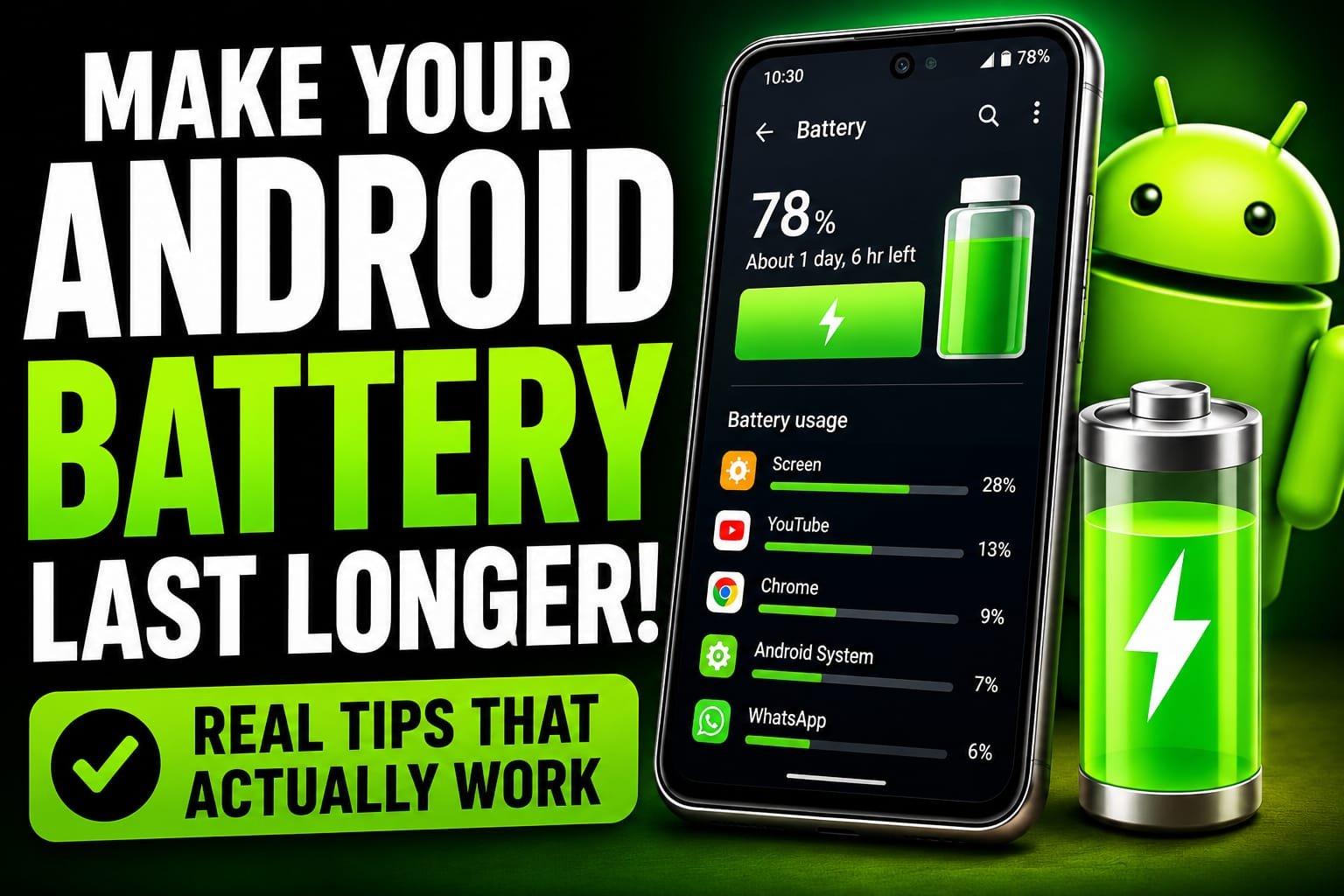
If there is one complaint I hear more than any other about phones, it is this: the battery just does not last like it used to. You leave the house in the morning with a full charge, and by mid-afternoon you are already hunting for a charger or nervously watching that percentage creep down. It is one of the most frustrating parts of owning a smartphone, because no matter how good the phone is, a dead battery makes it useless.
I have spent years tinkering with my own phones, trying to squeeze every last hour out of a single charge, and along the way I have learned something important. Most of the time, a battery that drains too fast is not a faulty battery at all. It is a phone full of settings, habits, and background activity quietly eating away at the charge without you ever noticing. The screen brightness left too high, dozens of apps refreshing in the background, location services running for apps that have no business knowing where you are. These small things add up fast.
The encouraging news is that you have far more control over your battery than you might think. In this guide I am going to share the Android battery saving tips I actually use myself, the ones that make a real difference rather than the vague advice you see repeated everywhere. None of this requires special apps or technical knowledge. It is all about adjusting a few settings and building a couple of simple habits, and by the end you should comfortably get more hours out of every charge.
Why Your Android Battery Drains So Fast
Before we start changing settings, it helps to understand where your battery actually goes, because the answer is rarely what people expect. The single biggest consumer of battery on almost every phone is the screen. That big, bright display is beautiful, but it is also hungry, and the brighter you keep it, the faster your charge disappears.
After the screen, the next big drains are the things happening quietly in the background. Apps refreshing their content, syncing your email, checking your location, and pushing notifications all use power even when you are not touching the phone. Then there are the connections your phone constantly maintains, like mobile data, Wi-Fi, Bluetooth, and GPS, each sipping a little energy throughout the day. Individually none of these seem like much, but running all day, every day, they are exactly why your battery struggles to make it to evening. The good thing is that almost every one of these can be adjusted, and that is precisely what we are going to do.
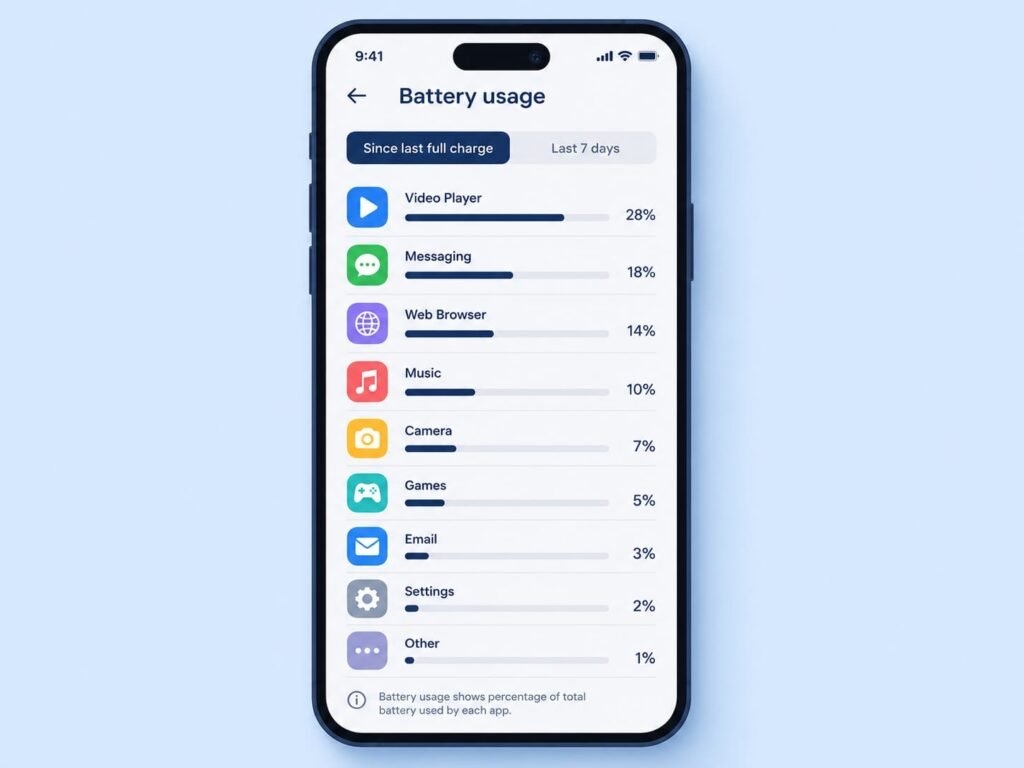
Thankfully, Android gives you a clear window into all of this. Your phone keeps a detailed record of which apps and features have used the most battery, and checking it is the smartest first step you can take.
Lower Your Screen Brightness and Use Adaptive Brightness
Since the screen is the biggest battery drain of all, this is where you get the biggest, fastest wins. Most people keep their brightness far higher than they actually need, often because the phone defaults to a bright setting or because they cranked it up once in sunlight and forgot to bring it back down.
Start by simply lowering your brightness to the lowest comfortable level for whatever room you are in. You will be amazed how quickly your eyes adjust and how much battery this saves over a full day. Even better, turn on the adaptive or automatic brightness feature, which lets your phone adjust the brightness intelligently based on your surroundings. It dims the screen indoors to save power and brightens it outdoors when you need it, all without you having to think about it.
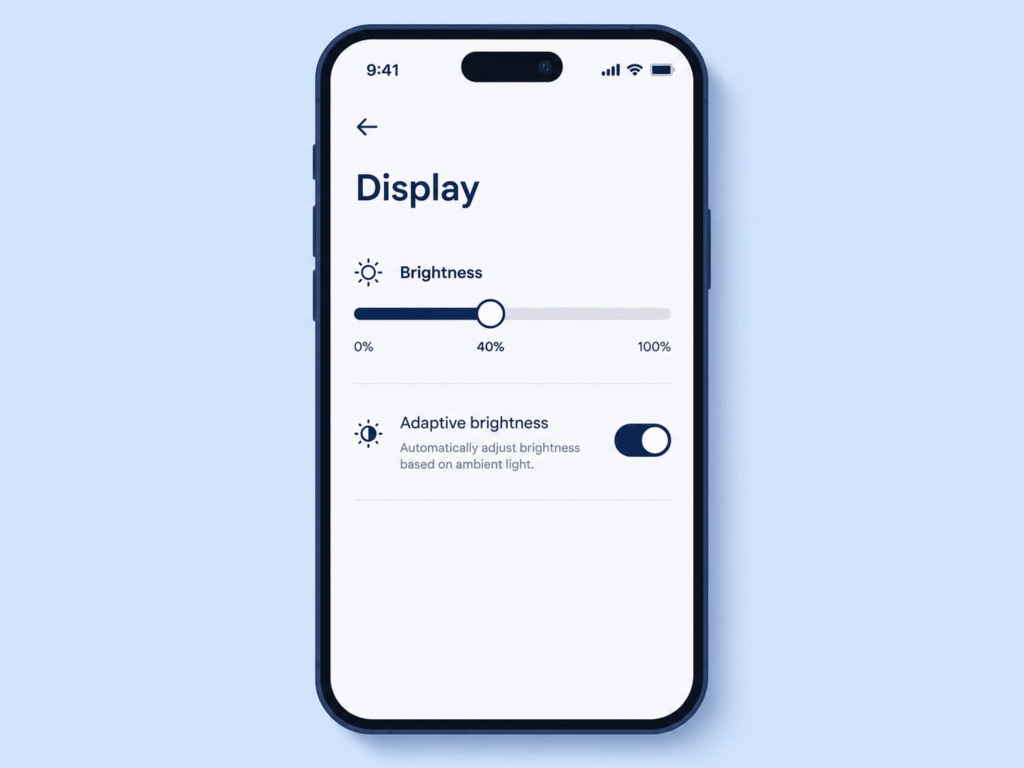
While you are at it, shorten your screen timeout, which is the amount of time your screen stays on after you stop touching it. Setting it to fifteen or thirty seconds instead of a couple of minutes means your screen is not needlessly burning power while the phone sits idle on a table. These two small changes alone, brightness and timeout, can stretch your battery noticeably further.
Turn On Battery Saver Mode
Every modern Android phone comes with a built-in battery saver mode, and it is one of the easiest tools at your disposal. When you switch it on, your phone automatically reins in background activity, reduces some visual effects, and limits the things that drain power the most, all to stretch your remaining charge as far as possible.
You can usually turn it on quickly from the quick settings panel you pull down from the top of your screen, or you can find it inside the battery section of your settings. What I really like is that most phones let you schedule it to switch on automatically when your battery drops to a certain level, say twenty percent. That way, when you are running low and cannot reach a charger, your phone quietly tightens its belt on its own and buys you those crucial extra hours.
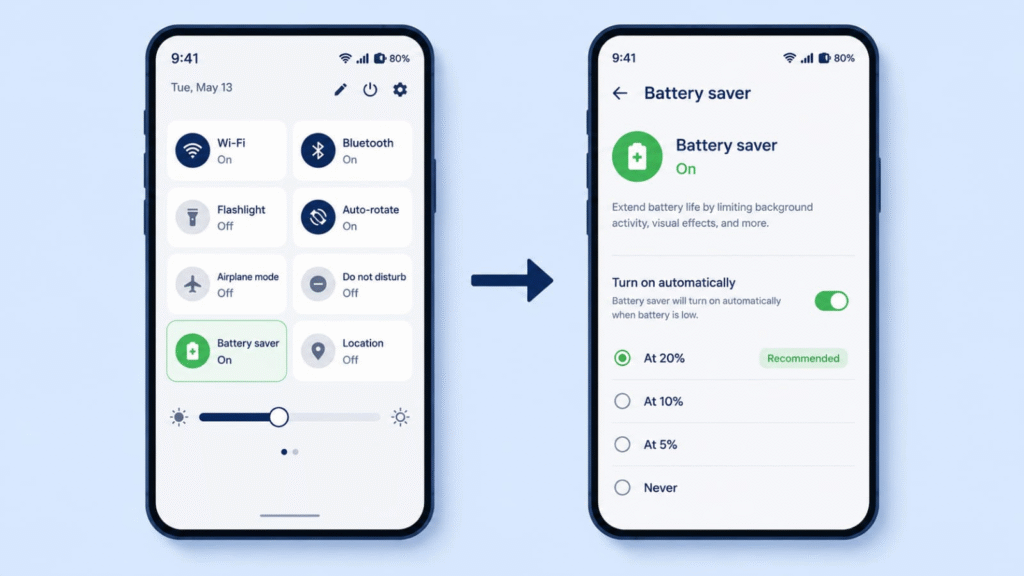
It is worth knowing that battery saver does slow down some background tasks, so your email might refresh a little less often and some apps may update more slowly while it is active. For most people, in most situations, that trade-off is completely worth the extra runtime.
Manage Apps Running in the Background
This is where a lot of hidden battery drain happens. Many apps keep working even when you are not using them, refreshing their content, syncing data, and waking the phone up over and over throughout the day. A few important apps doing this is fine, but when dozens of them are all at it, your battery pays the price.
Go into your battery settings and look at the usage list, which shows you exactly which apps have consumed the most power. If you spot an app near the top that you barely use, that is a red flag worth acting on. Most Android phones let you restrict an app’s background activity, so it only runs when you actually open it rather than around the clock. Restricting these power-hungry apps that you do not need running constantly can make a real, measurable difference to how long your charge lasts.
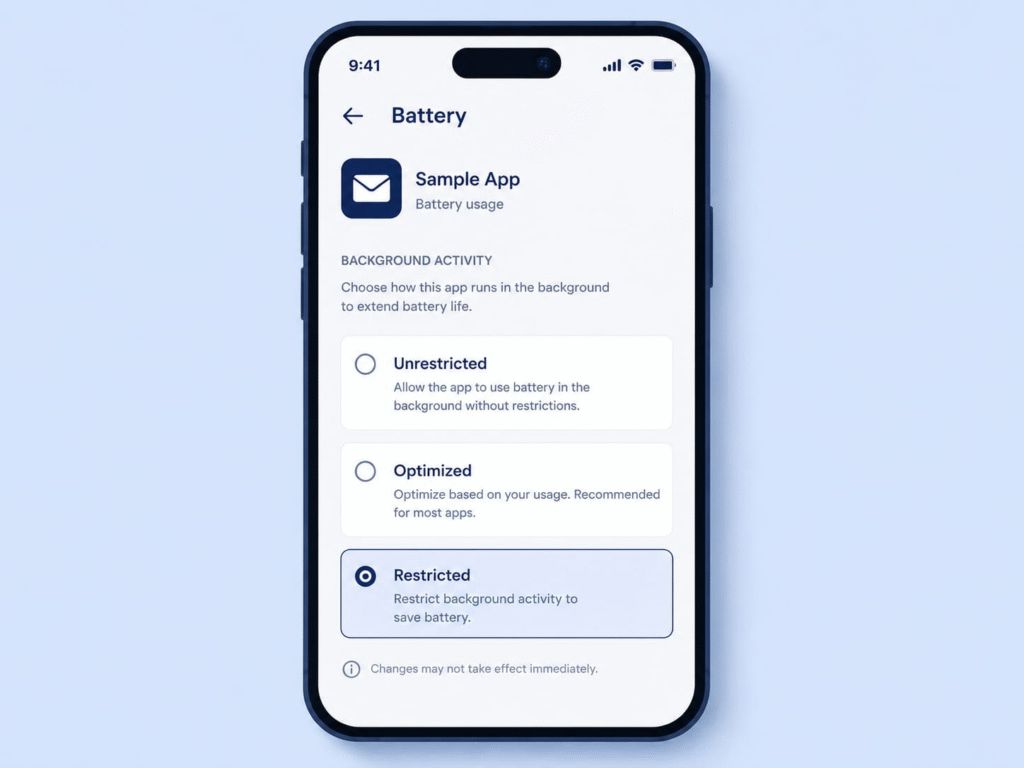
Do be a little thoughtful here, though. Apps you rely on for instant notifications, like your messaging and calling apps, should be left alone so you never miss anything important. The goal is to rein in the apps that are quietly draining power for no good reason, not to cripple the ones you genuinely depend on.
Turn Off Connections You Are Not Using
Your phone is constantly maintaining a handful of wireless connections, and each one uses a little energy even when it is doing nothing useful. Bluetooth searching for devices, GPS tracking your location, Wi-Fi scanning for networks, and mobile data all draw power in the background throughout the day.
The simple habit here is to switch off whatever you are not currently using. If you are not connected to any Bluetooth device, turn Bluetooth off. If you are at home on Wi-Fi, you do not need mobile data running at the same time. When your Wi-Fi signal is available and strong, it is generally easier on the battery than mobile data, so use it when you can. And if you are somewhere with terrible signal, your phone actually drains faster because it keeps boosting its power trying to find a connection, so in those situations airplane mode can be a genuine lifesaver.
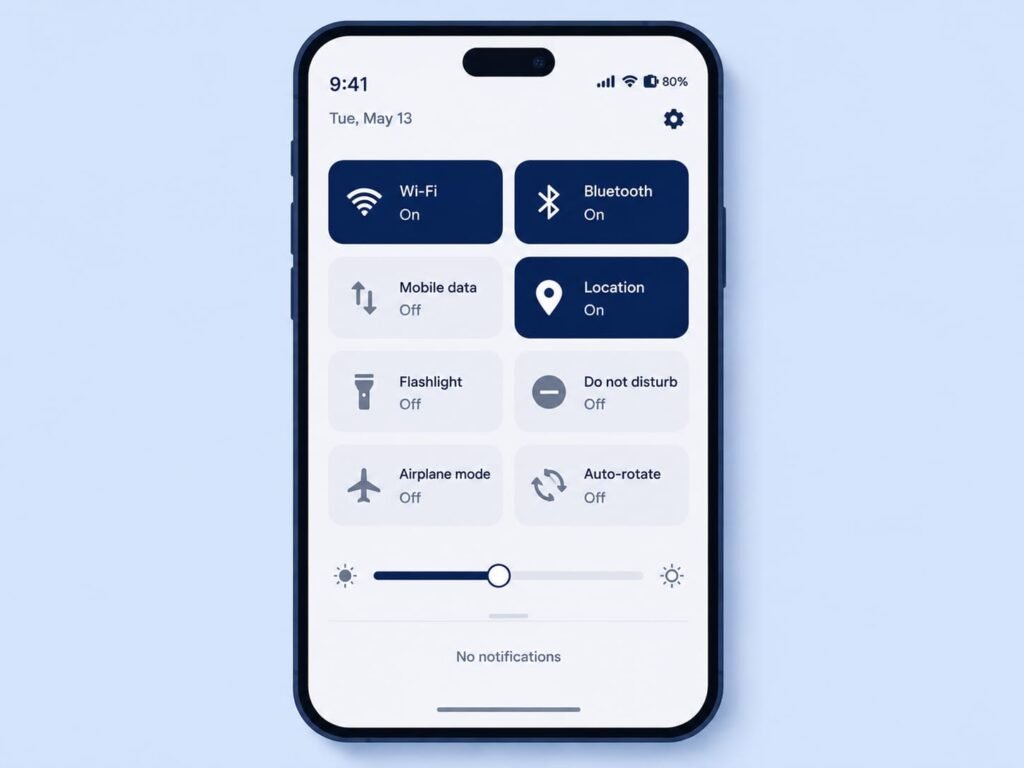
None of these connections are bad, and you should absolutely use them when you need them. The point is simply to stop them from running pointlessly in the background when they serve no purpose, because all those little drains add up over a full day.
Rein In Location Services
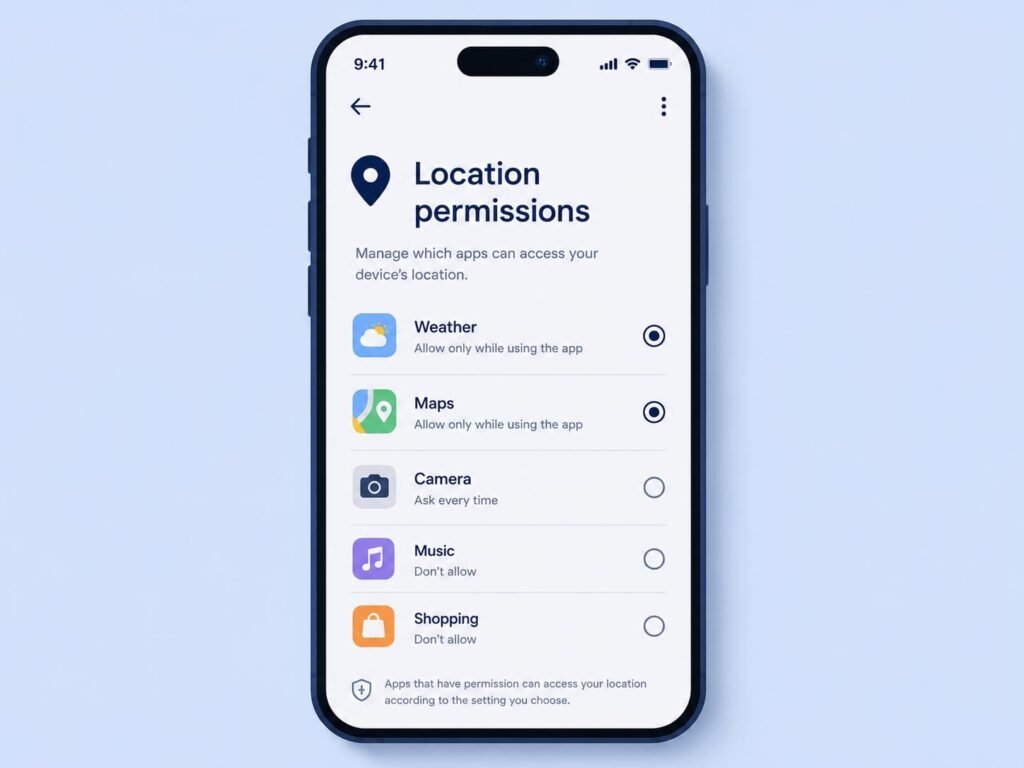
Location is one of the sneakiest battery drains because so many apps ask for it, and most of them do not really need it running all the time. Your map app needs your location while you are navigating, of course, but does that shopping app or that game truly need to track where you are every minute of the day? Almost never.
Dive into your location settings and review which apps have permission to access your location. For most apps, you can change the permission so they only know your location while you are actively using them, rather than constantly in the background. Some apps you can deny location entirely with no downside at all. Trimming these permissions not only saves a meaningful amount of battery, it is also better for your privacy, which is a nice bonus.
Use a Dark Theme If Your Phone Has an OLED Screen
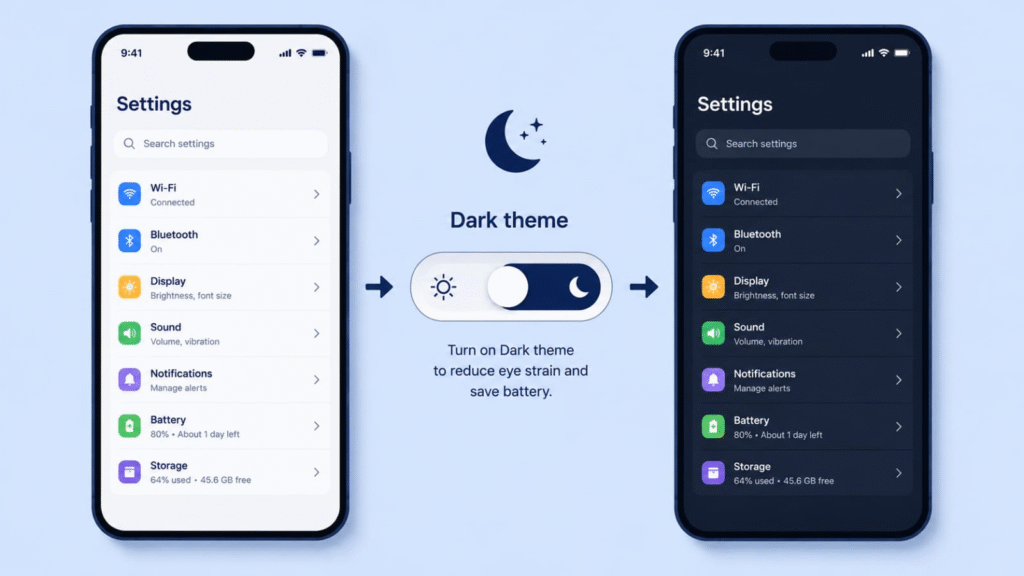
Here is a tip that genuinely helps on many modern phones. If your phone has an OLED or AMOLED screen, which most newer mid-range and flagship phones do, then switching to a dark theme can save real battery. On these screens, black pixels are actually switched off rather than lit up, so a dark interface uses less power than a bright white one.
You can usually enable a system-wide dark theme from your display settings, and many apps will follow it automatically, turning their backgrounds dark. Beyond the battery benefit, a lot of people find dark mode easier on the eyes, especially at night. If you are not sure whether your phone has an OLED screen, you can quickly check its specifications online, but it is worth trying either way since dark mode has plenty of other advantages.
Keep Your Apps and Software Updated
It is easy to ignore those update notifications, but updates often include improvements that help your battery, not just new features. Developers regularly discover that an app was using more power than it should and release a fix, so an app that drained your battery last month might behave much better after its latest update.
The same applies to your phone’s main software. Manufacturers push out updates that improve how the system manages power, and these can quietly extend your battery life on a phone you already own. Make a habit of checking your app store for pending updates and your settings for any available system update. It is one of the most effortless ways to keep your battery performing at its best, since the hard work is done for you and all you have to do is install it.
Take Care of the Battery Itself
Beyond settings, the way you charge and treat your phone affects how well the battery holds up over the long run. Batteries are happiest when they are not constantly pushed to extremes, so a few gentle habits go a long way toward keeping yours healthy for years.
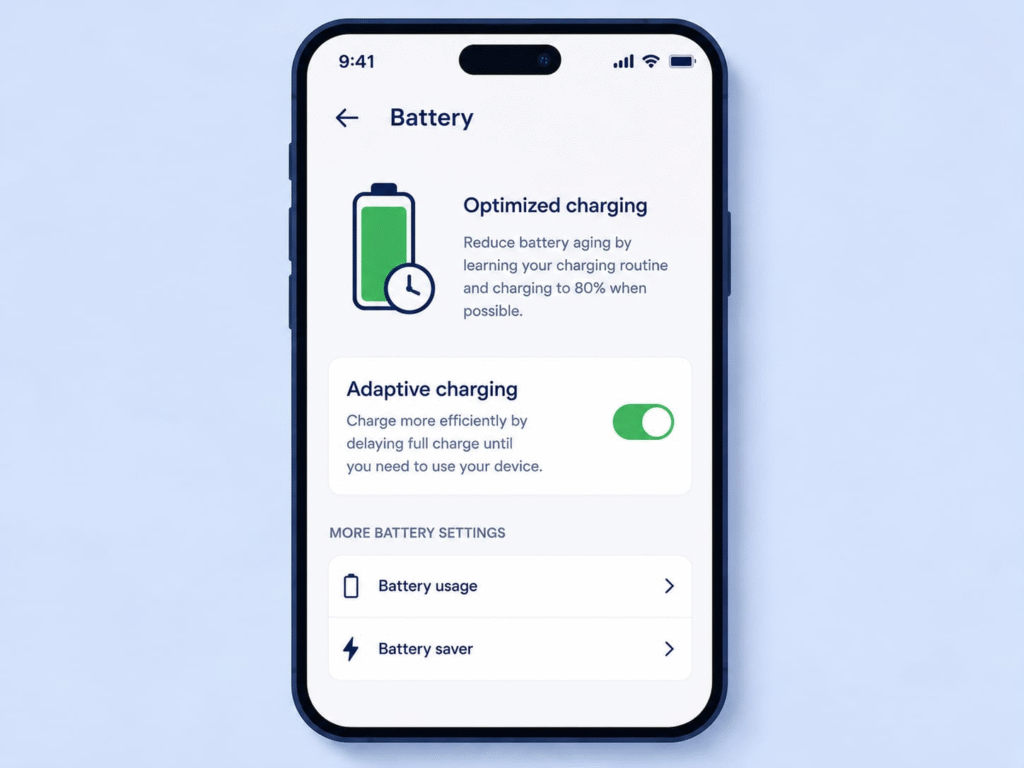
Try not to let your battery regularly drain all the way to zero, and you do not need to obsessively charge it to a full hundred percent every single time either. Keeping it roughly between twenty and eighty percent is gentler on the battery over its lifetime. Heat is the other big enemy, so avoid leaving your phone in hot places like a car dashboard in the sun, and if your phone gets warm while charging, take its case off. If your phone offers an optimized or adaptive charging feature that learns your routine and avoids keeping the battery full for long stretches, it is worth turning on, because it genuinely helps preserve battery health.
Be Cautious With Battery Saver Apps
Just as with apps that promise to speed up your phone, you will find plenty of apps in the store claiming they can dramatically boost your battery life with a single tap. I would encourage you to be skeptical of these. In most cases they do little to help and often hurt, because they run constantly in the background and are frequently packed with advertisements, which is exactly the kind of activity that drains your battery in the first place.
Everything that genuinely helps your battery is already built into your phone, and we have covered it in this guide. You do not need to download a special tool to manage your battery well. The real improvements come from the settings and habits we have talked about, not from a third-party app making big promises it cannot keep.
Conclusion
A battery that struggles to last the day is one of the most common phone frustrations, but as you have seen, it is also one of the most fixable. The biggest gains come from the simplest changes: lowering your screen brightness, shortening your screen timeout, turning on battery saver, and reining in the apps and connections quietly draining power in the background. Layer on a few healthy charging habits, and you protect not just today’s charge but the long-term health of the battery itself.
You do not have to apply every single tip at once. Start with the screen, since that is the biggest drain by far, then check your battery usage list to see which apps are misbehaving, and go from there. Within a day or two of small adjustments, I think you will notice your phone comfortably reaching the evening with charge to spare. And as always, remember that menu names can differ slightly depending on your phone brand and Android version, so if a setting is worded a little differently on your device, look for the closest match and you will find it. None of these Android battery saving tips cost a thing, and together they can transform how long your phone lasts on a single charge.
Frequently Asked Questions
What drains the most battery on an Android phone? The screen is almost always the single biggest drain, especially at high brightness. After that, the main culprits are apps running and refreshing in the background, location services, and wireless connections like mobile data and Bluetooth running all day. Adjusting these is where you get the biggest savings.
Does battery saver mode actually work? Yes. Battery saver genuinely extends your runtime by limiting background activity and reducing power-hungry features. The trade-off is that some apps refresh more slowly while it is on, but for stretching a low battery through the rest of the day, it is very effective.
Is it bad to charge my phone overnight? Modern phones are designed to stop drawing power once they reach full, so overnight charging is generally safe. That said, keeping the battery at a full charge for many hours is not ideal for long-term health, which is why optimized or adaptive charging features, if your phone has them, are worth turning on.
Do battery saver apps from the store help? Usually not. Most of them run constantly in the background and are filled with ads, which can actually drain your battery further. Everything you need to manage your battery well is already built into your phone’s settings, so these apps are best avoided.
Should I let my battery drain completely before charging? No, that is an old habit from much older battery types. Today’s phones prefer to stay roughly between twenty and eighty percent. Regularly draining all the way to zero puts more strain on the battery over time, so it is better to top up before it gets too low.