Introduction
There is a special kind of frustration that almost every Android user knows by heart. You lift your phone to capture something worth remembering, maybe your child laughing or a view you do not want to forget, and right at that moment a message slides across the screen: storage full. The moment is gone, and you are left staring at a phone that refuses to cooperate. Or you go to update an app, download a song, or save an important document, and your phone flatly tells you there is no room left.
I have been there more times than I would like to admit. For years I used Android phones the way most people do, and whenever the storage filled up, my first instinct was to panic and start deleting photos. I would remove a few old pictures, free up a sliver of space, and two days later the phone would be full again. It was an endless loop, and the worst part is that I lost a handful of memories along the way that I never needed to delete in the first place.
Then something clicked. I realized the photos were almost never the real problem. The space was being eaten by things I could not even see: temporary junk files, an avalanche of forwarded videos, forgotten downloads, and a graveyard of apps I had not opened in months. Once I understood that, I stopped deleting my pictures entirely, and yet my phone has stayed roomy and quick ever since. This guide is everything I learned, written so you can do the same and finally free up Android storage without sacrificing a single photo.
Why Your Android Storage Fills Up So Quickly
Before we start cleaning anything, it helps to understand why phones fill up the way they do. Modern apps are hungry. A single social media app can balloon to several gigabytes over time, not because of anything you saved on purpose, but because of all the data it quietly stores in the background to load faster. Add to that the photos and videos we capture daily, the files we download and forget, and the media that messaging apps pour into our galleries, and it becomes obvious why even a phone that felt huge when you bought it can feel cramped within a year.
There is also the simple fact that we rarely clean as we go. We install, we save, we download, and we move on. Nothing ever gets removed unless the phone forces our hand. The good news is that once you know where the clutter hides, getting it out is surprisingly easy, and most of it has nothing to do with your personal pictures at all.
What Usually Eats Your Storage Besides Photos
When people see the dreaded Android storage full warning, they assume their camera roll is the culprit. In reality, photos are often one of the smaller pieces of the puzzle. The bigger offenders tend to be app data, cached files, downloaded videos, and the media that piles up inside chat apps.
Think about it. A few hundred photos might take up two or three gigabytes. But a single video streaming app, with all its cached clips and offline downloads, can easily match or beat that. Messaging apps are even worse, because every meme, every good-morning video, and every forwarded clip gets saved automatically unless you tell it otherwise. Understanding this shifts your whole approach. Instead of mournfully deleting memories, you start targeting the real space hogs, and that is where this entire guide is heading.
How to Identify Large Files and Storage Hogs
You should never clean blindly. Cleaning without first checking where your space went is like sweeping a dark room. You might spend an hour and still miss the actual mess. So the first real step in any phone storage cleanup is to open your phone’s settings and look at the storage breakdown.
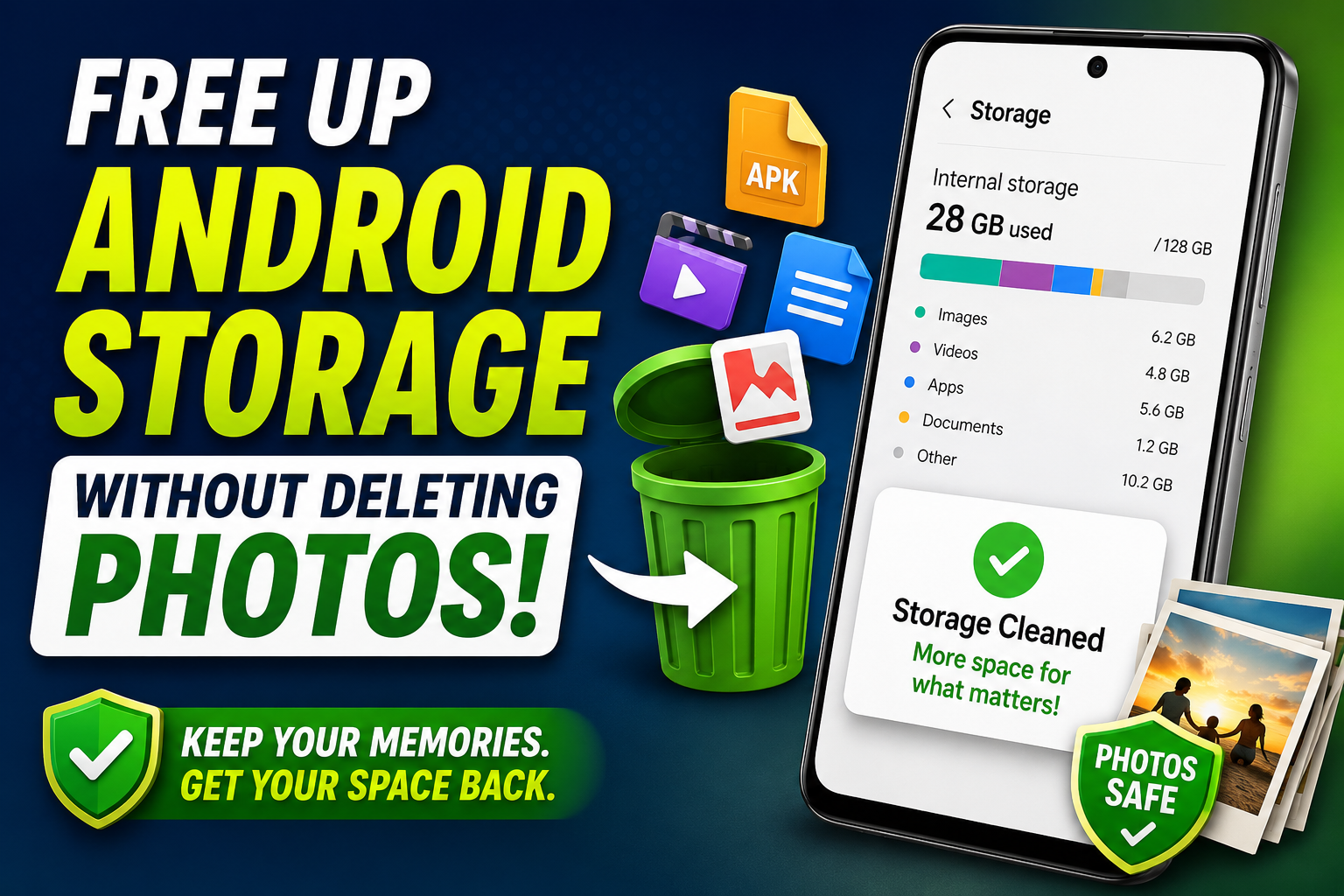
In most phones you will find this under Settings, then Storage. On Samsung devices it often lives inside a section called Device care. When you tap into it, you will see a colorful bar that lays out exactly how your space is being used: how much is taken by images, how much by apps, how much by videos, and how much by the mysterious category the system usually labels as Other or System.
This screen is genuinely eye-opening. The first time I checked mine, I assumed my photos were to blame. Instead I discovered that eighteen gigabytes were locked up inside one messaging app’s media folder. Eighteen gigabytes, from a single app. That moment completely changed how I approached storage management. So take a calm look at this breakdown first, and then aim your effort where it will actually make a difference rather than wasting energy on the wrong target.
How to Safely Clear App Cache
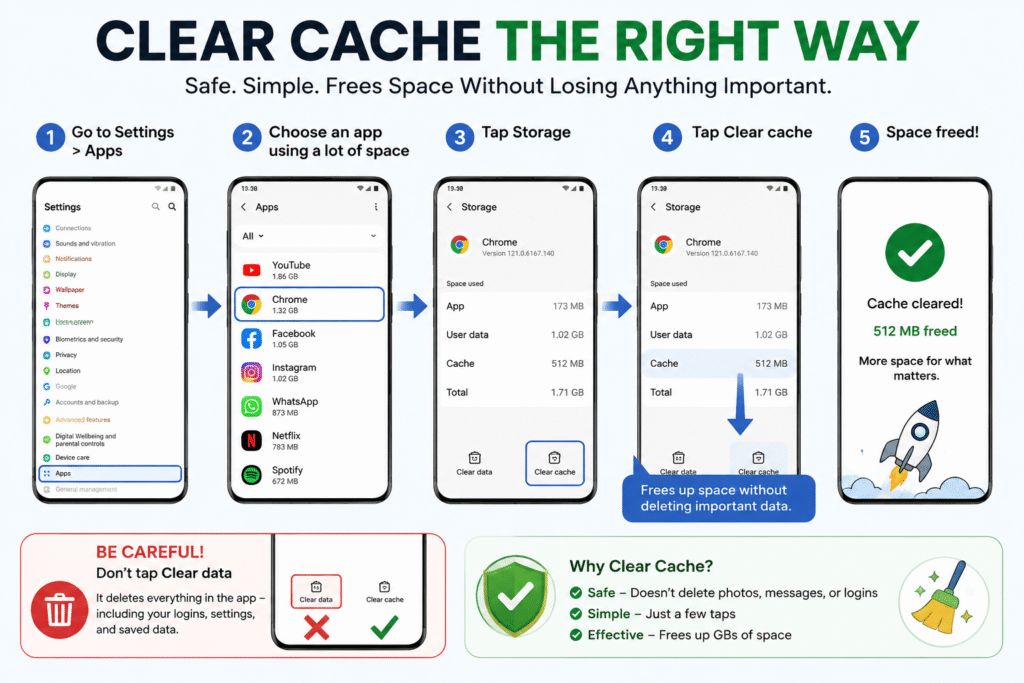
Let us start with the gentlest and safest cleanup method of all: clearing the cache. Cache is simply the collection of temporary files that apps create to run faster. When you watch a video on a streaming app or scroll through a browser, the app saves bits of data so the same content loads instantly next time. That is helpful in theory, but over weeks and months these temporary files swell into gigabytes of dead weight.
The best thing about clearing cache is that it removes none of your important data. Not a photo, not a message, not a login. It only wipes the disposable files an app no longer needs. To do it, head into Settings, open the Apps section, and choose an app that is using a lot of space, such as your browser or a video app. Tap into its Storage option, and you will see a button to clear the cache. Tap it, and watch the space come back.
Here is the one thing you must be careful about, and I learned this the hard way. On that same screen you will usually see two similar buttons sitting close together. One says Clear cache and the other says Clear data. These two are worlds apart. Always tap only the cache button. The data button wipes everything inside the app, including your logins and settings, forcing you to start from scratch. So go slowly and stick to clearing cache only. This is the safest way to clear storage without deleting photos or anything else you care about.
Removing Unnecessary Downloads and Duplicate Files
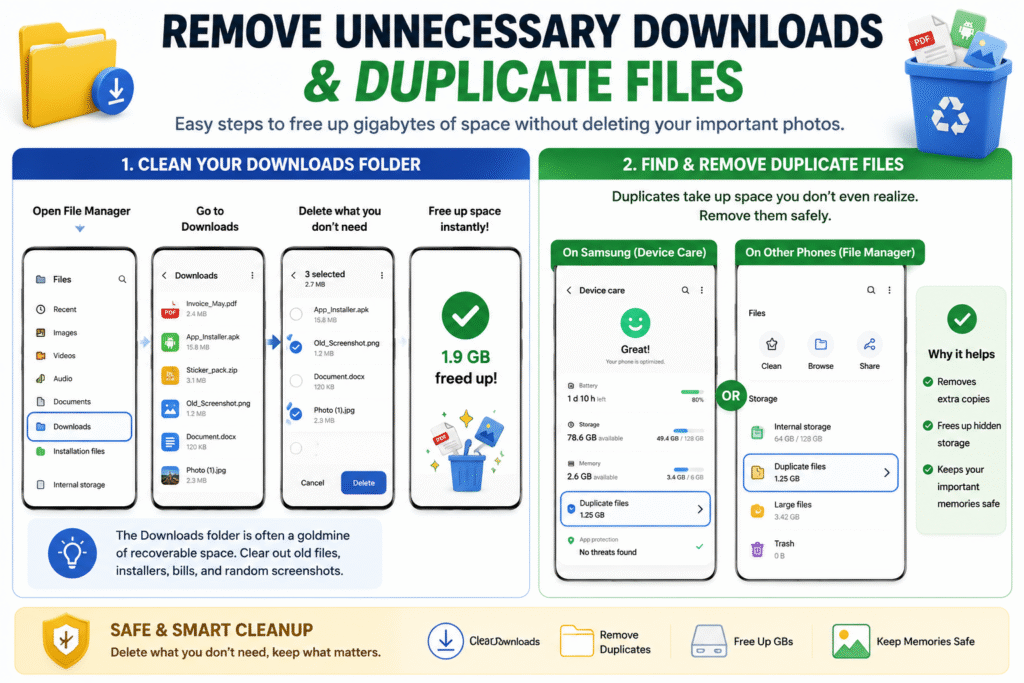
The downloads folder is the single most ignored corner of any phone, and it is often a goldmine of recoverable space. Think about everything you pull from the internet in a typical week: a PDF here, a bill there, a sticker, an installer file, a document someone shared. It all quietly stacks up in your downloads folder, and once something lands there, most of us never look at it again.
Open your phone’s file manager, usually called Files or My Files, and head into the Downloads folder. Take an honest look. You will almost certainly find old installer files, expired bills, random screenshots, and several copies of the same picture. Clear out whatever no longer serves a purpose. Just this one folder can often hand back a gigabyte or two, and none of it touches your real memories.
Duplicate files are a related and sneaky problem. Maybe you edited a photo, so now both the original and the edited version sit on your phone. Maybe you saved a picture from a chat and then kept a second copy in your gallery. These duplicates add up silently. Many Samsung phones include a duplicate file finder inside the Device care storage menu, and other phones can handle it through the file manager. Where possible, I prefer using the phone’s own built-in tool for this, simply because it tends to be safer than reaching for an outside app.
Deleting Unused Apps and Games
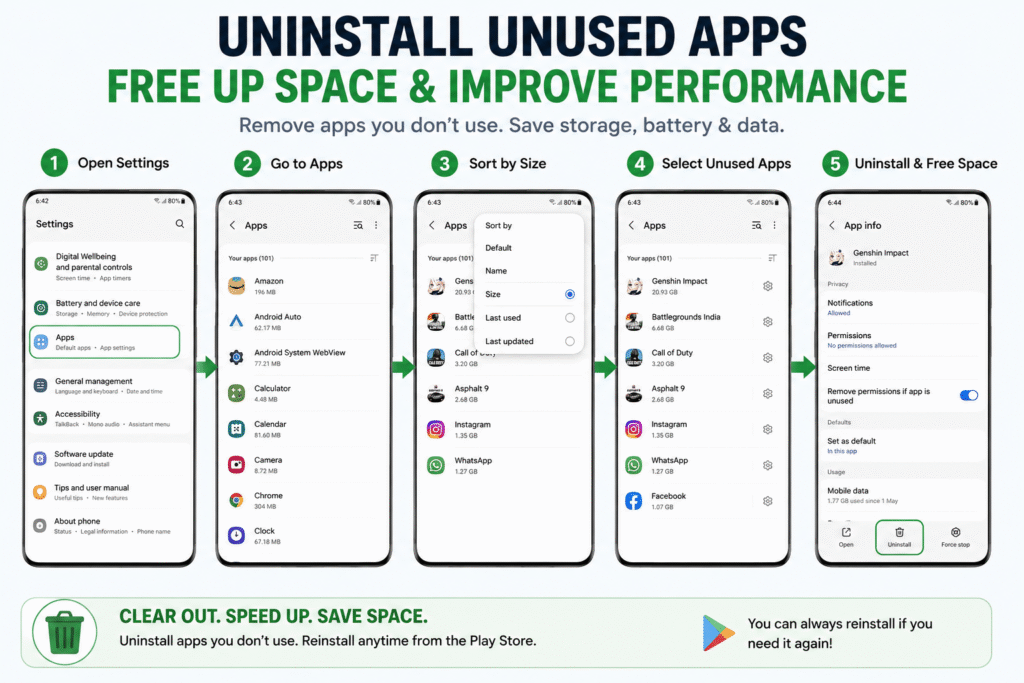
Now look honestly at your home screen. I am almost certain you will find apps you installed for one specific reason and then never opened again. An old game you played for a week, a shopping app you used once, a photo editor you needed for a single picture. These apps do more than just occupy space. Many of them keep running quietly in the background, nibbling at your battery and data even when you are not using them.
To clear them out, open Settings and go to the Apps section. If your phone allows it, sort the apps by size so the biggest ones rise to the top. Then look for any large app you have not touched in months and uninstall it without hesitation. There is no reason to feel nervous here, because you can always reinstall anything from the app store later, completely free. If you are not using it right now, there is no harm in letting it go to increase available storage on Android today.
Cleaning Messaging Apps and Media Folders
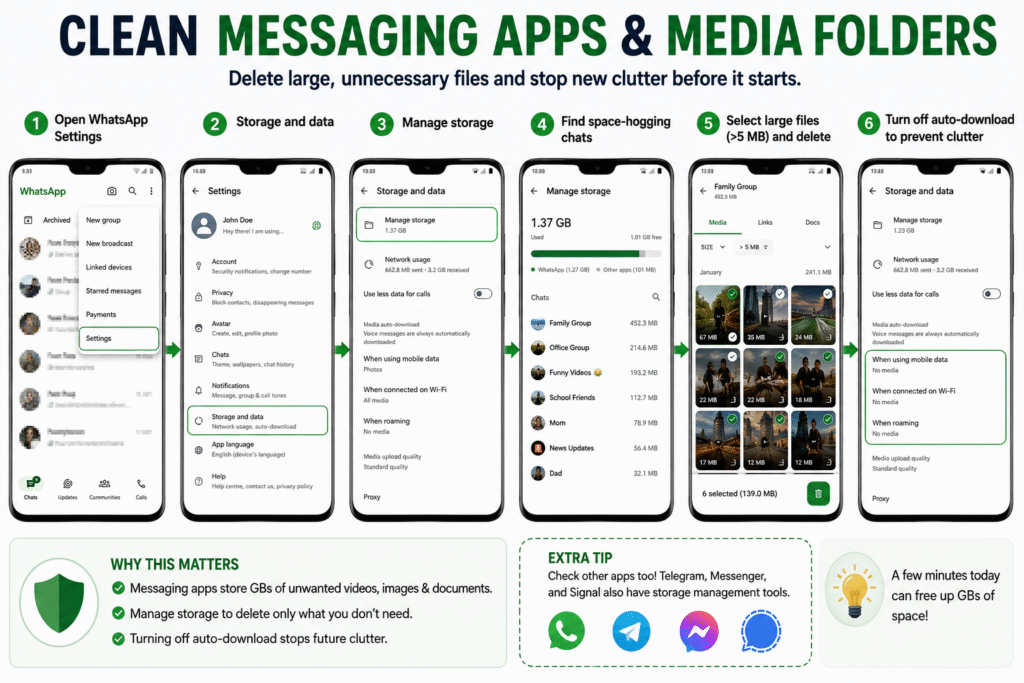
If I am being completely honest, messaging apps are the biggest storage villains on most phones. Every morning, group chats fill with greeting images and videos. Throughout the day come the memes, the jokes, the news clips, and the long forwarded videos. We barely open half of them, yet they download automatically and bury themselves in our gallery and storage. Within a week or two they become a multi-gigabyte heap.
Thankfully, most messaging apps now include a built-in storage tool that shows you exactly which chats are hoarding the most space. Inside the app’s settings, look for a section about storage and data, and then a manage storage option. It will lay out, in order, which conversations are taking up the most room. The clever part is that you do not have to delete everything blindly. You can filter for files larger than a certain size and remove only the heavy, pointless videos while leaving your meaningful photos untouched.
While you are in there, turn off media auto-download. This single setting stops every incoming image and video from automatically saving to your phone. After that, only the media you actually choose to open gets saved. It is a tiny change, but over the long run it spares your phone from gigabytes of useless clutter and is one of the smartest storage management tips you can adopt.
Managing Offline Videos and Music Downloads
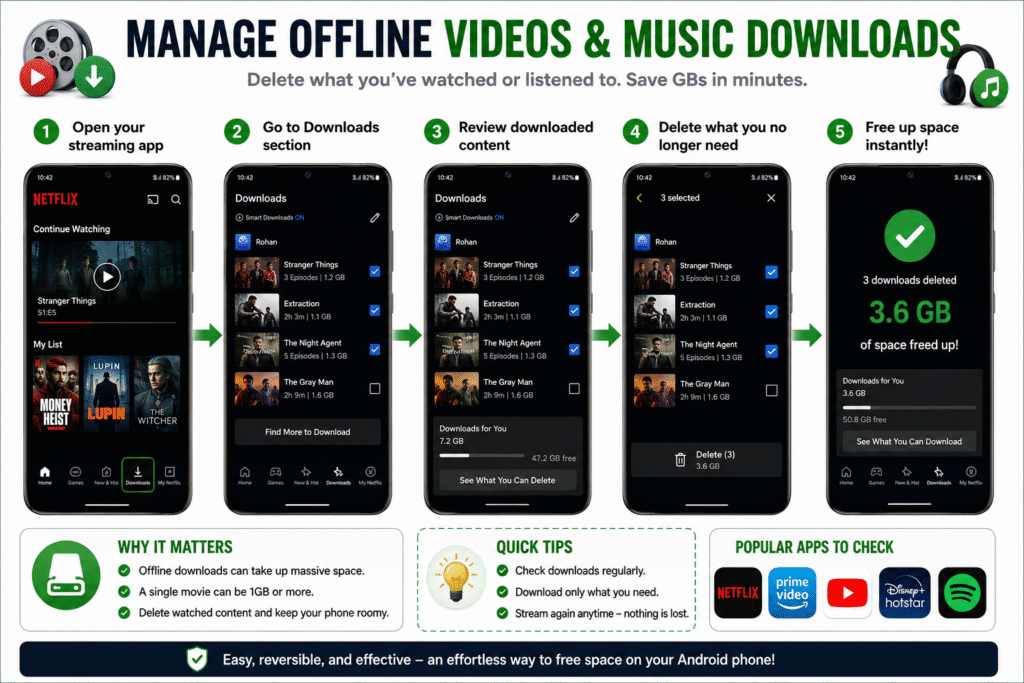
Streaming apps deserve their own mention, because their offline downloads can quietly consume enormous amounts of space. When you download episodes, movies, or playlists to watch and listen without internet, those files sit on your phone until you remove them. A single downloaded film can weigh more than a gigabyte, and a few of them together can fill a noticeable chunk of your storage.
The fix is simple. Open your video and music apps and check their downloads section. Delete anything you have already finished watching or no longer plan to play. The content does not disappear forever; it stays available to stream or download again whenever you want. This is an easy and completely reversible way to free space on an Android phone, and most people are surprised by how much they recover here.
Moving Files to Cloud Storage or an SD Card
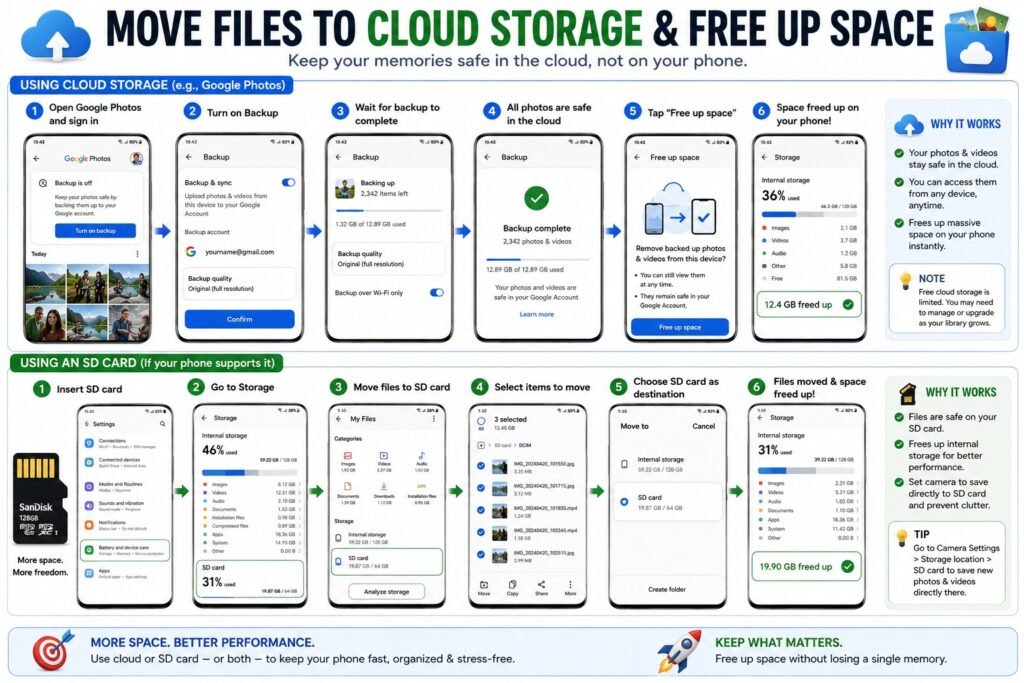
This is where you reclaim the most space without losing a thing, so pay close attention. Cloud storage services let you keep your photos and videos safely on the internet rather than on your phone. Picture it as a secure online cabinet. Once your pictures are backed up there, you can remove them from your phone and they are not gone. They remain in the cloud, viewable and downloadable from any device whenever you like. This is precisely why it counts as clearing storage without deleting photos rather than actually losing them.
To use it, open a cloud photo service such as Google Photos, sign in with your account, and turn on backup. Let it finish, ideally over Wi-Fi and while charging, since the first backup can take a while. Once everything is safely saved, look for the option to free up space. The app will then remove only the photos already secured in the cloud, leaving your memories intact while your phone suddenly breathes again. On my own phone, this one step freed up more than twelve gigabytes at once, and not a single picture was lost. Just keep in mind that free cloud accounts come with a storage limit, so you may eventually need to tidy the cloud too or choose a larger plan.
If your phone supports a microSD card, that is another excellent route. You can move photos, videos, and other files onto the card and free up your phone’s internal storage. Many phones let you set the camera to save directly to the card as well, which prevents the problem from building up again.
Using Built-In Android Storage Management Features
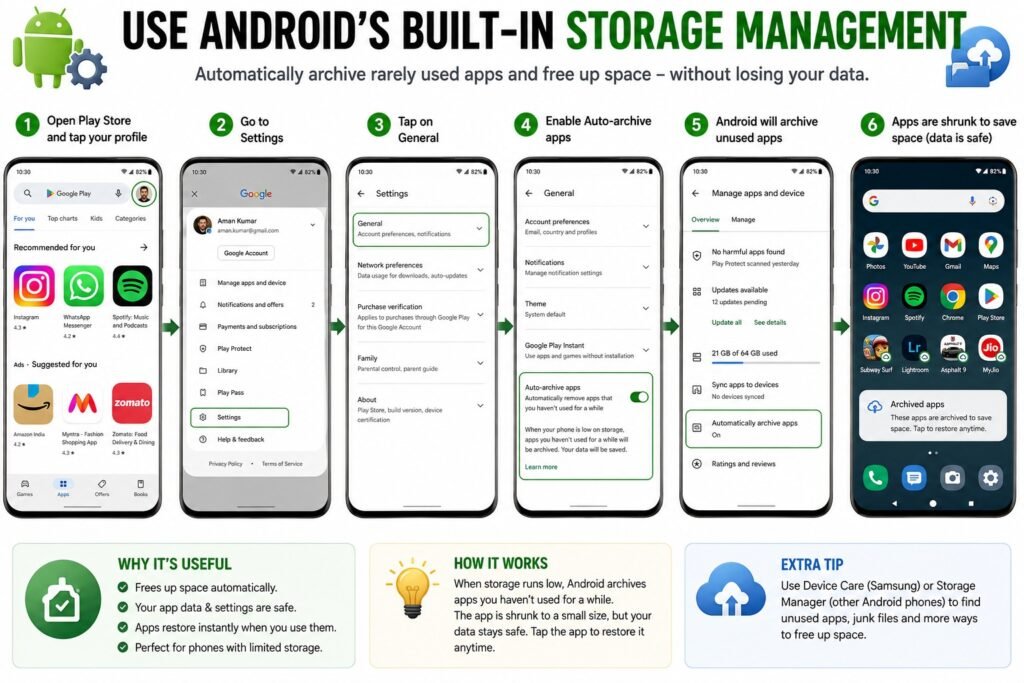
Android itself has become quite good at helping you stay tidy, and many people never use these tools. Beyond the storage breakdown we already explored, newer phones and the app store include a feature that automatically archives apps you rarely use. Archiving shrinks an app to a fraction of its size without fully deleting it. The icon stays on your phone, your data inside stays safe, and the moment you tap it again the app restores itself completely.
To enable this, open the app store, tap your profile, go into settings, and turn on the automatic archive option. From then on, when your phone starts running low, it will gently shrink the apps you barely touch. It is especially helpful if your phone came with limited storage to begin with, and it works quietly in the background without you having to think about it.
Why You Should Avoid Random Cleaner Apps
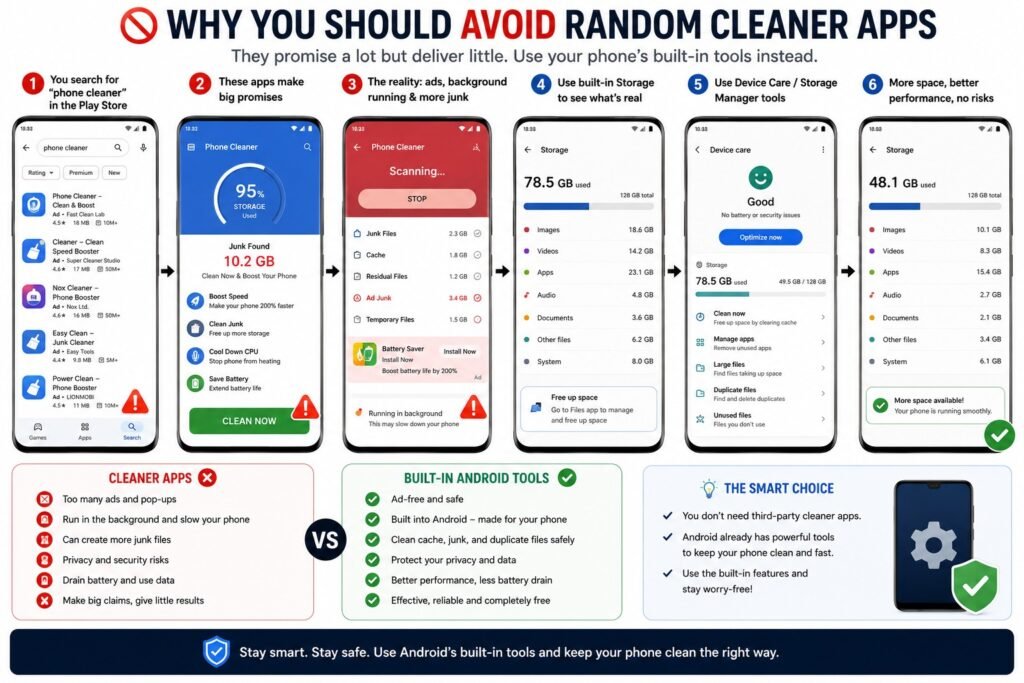
At some point you will be tempted by one of those flashy cleaner or booster apps that promise to magically free your phone with a single tap. I want to gently steer you away from them. The honest truth is that most of these apps cause more harm than good. They tend to be packed with ads, they often run constantly in the background, and some of them actually create their own junk files that fill your phone further. They make big claims they cannot really back up.
Everything in this Android cleanup guide can be done with the tools already built into your phone. Those native features are safer, cleaner, and free of the nonsense that bundled cleaner apps bring along. You simply do not need a third-party app to do what your phone already does well on its own.
Healthy Habits to Prevent Storage Problems
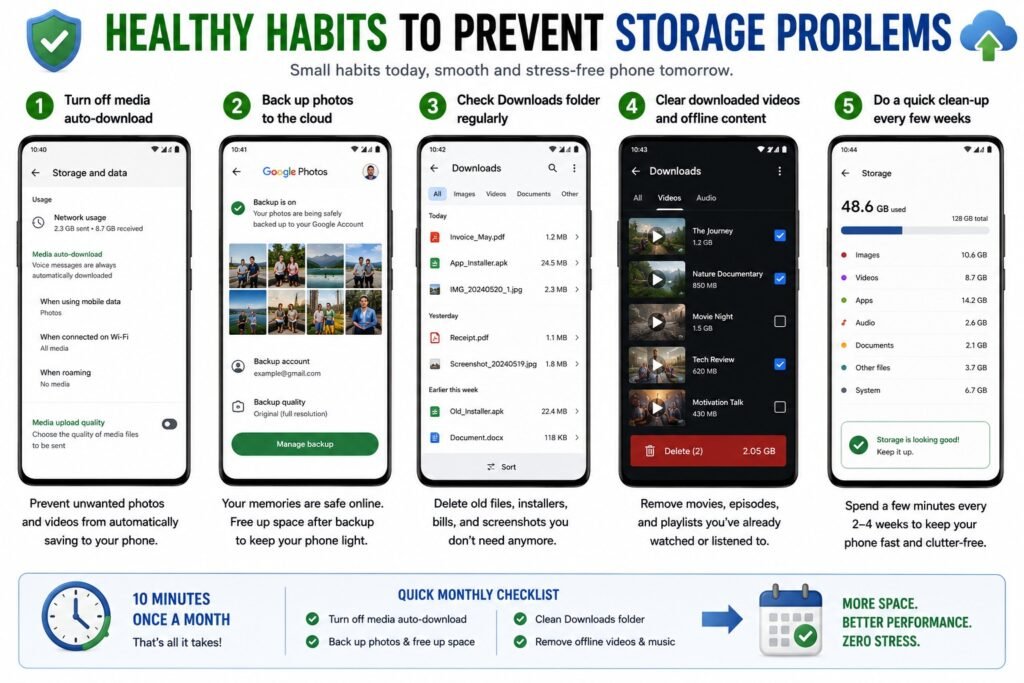
A little maintenance goes a long way, and a few simple habits can keep you from ever seeing that Android storage full warning again. Keep media auto-download switched off in your messaging apps so your gallery does not fill on its own. Back up your photos to the cloud regularly and free up space afterward, so your memories live safely online instead of crowding your phone. Glance through your downloads folder and your downloaded videos every few weeks and clear out what you no longer need.
None of this takes long. Spending ten minutes once a month on this kind of light phone storage cleanup is enough to keep your device feeling open and fast all year round. The goal is to make tidying a small, occasional habit rather than a desperate rescue mission when the phone finally gives up.
Conclusion
Running out of space does not mean you have to give up your cherished photos and memories. As you have seen throughout this guide, the real space is almost always taken by cached files, bloated messaging media, forgotten downloads, duplicate files, and apps you have not opened in ages. A little awareness and a gentle monthly cleanup are all it takes to keep your phone spacious and quick, and to free up Android storage the safe way.
If you do only one thing, make it the cloud backup method. Backing up your pictures and then freeing up space recovers the most room of any single step, and it puts zero photos at risk. Start there, then work through the other methods at your own pace, and remember to lean on safe, reversible actions like clearing cache before reaching for anything more permanent. One important note as you go: menu names and exact steps can differ slightly depending on your Android version or phone brand, so check each step calmly on your own device, and never feel you need to root your phone to manage storage, because everything here works perfectly well without it.
Frequently Asked Questions
Will clearing cache delete my photos or chats? No. Cache is made up of temporary files only. Clearing it does not remove any of your personal data, photos, or messages. It is one of the safest cleanup steps you can take, and the space it recovers can be significant.
If I back up my photos to the cloud and then remove them from my phone, are they safe? Yes. Once your photos are backed up to a cloud service, they stay stored online. You can view and download them anytime by signing into your account from any phone or computer. Just make sure the backup has fully finished before you free up space.
Do I need to install a separate app to free up storage on Android? In most cases, no. Everything in this guide can be done using your phone’s own settings and built-in tools. Third-party cleaner apps usually cause more trouble than they solve, so it is best to rely on the native features.
What is the difference between clearing cached data and deleting personal files? Cached data is disposable temporary information that apps recreate automatically, so deleting it is harmless. Personal files are your actual photos, videos, documents, and downloads. The methods in this guide focus on removing cache and clutter while keeping your personal files completely untouched.
Why does my phone fill up again so quickly, and how do I stop it? The usual causes are messaging apps auto-downloading media and downloaded videos piling up. Turn off media auto-download, back up your photos to the cloud and free up space regularly, and remove large unused apps now and then. These few habits keep your storage healthy for the long term.