Introduction
A note from the author: I have been using Android phones for the past eight years and have owned dozens of phones both cheap and expensive. Everything I have said in this article has been tested on my own and my family’s phones. This is not a bookish thing, but a practical experience that really works.
It has happened to almost all of us at some point. You buy a new phone, at first it was as fast as the wind, apps opened instantly, and everything was absolutely smooth. But after a year or two, the same phone starts to slow down. It takes a while to open an app, the screen freezes, the phone freezes while opening a WhatsApp message, and sometimes I get angry that this has happened.
The same thing happened to my own old phone. There was a time when it got so slow that I thought I had to buy a new phone. But before I bought a new phone, I tried a few things, and believe me, the same phone started running fast again. I didn’t need to buy a new phone for several months. Today, I’ll share all of that with you.
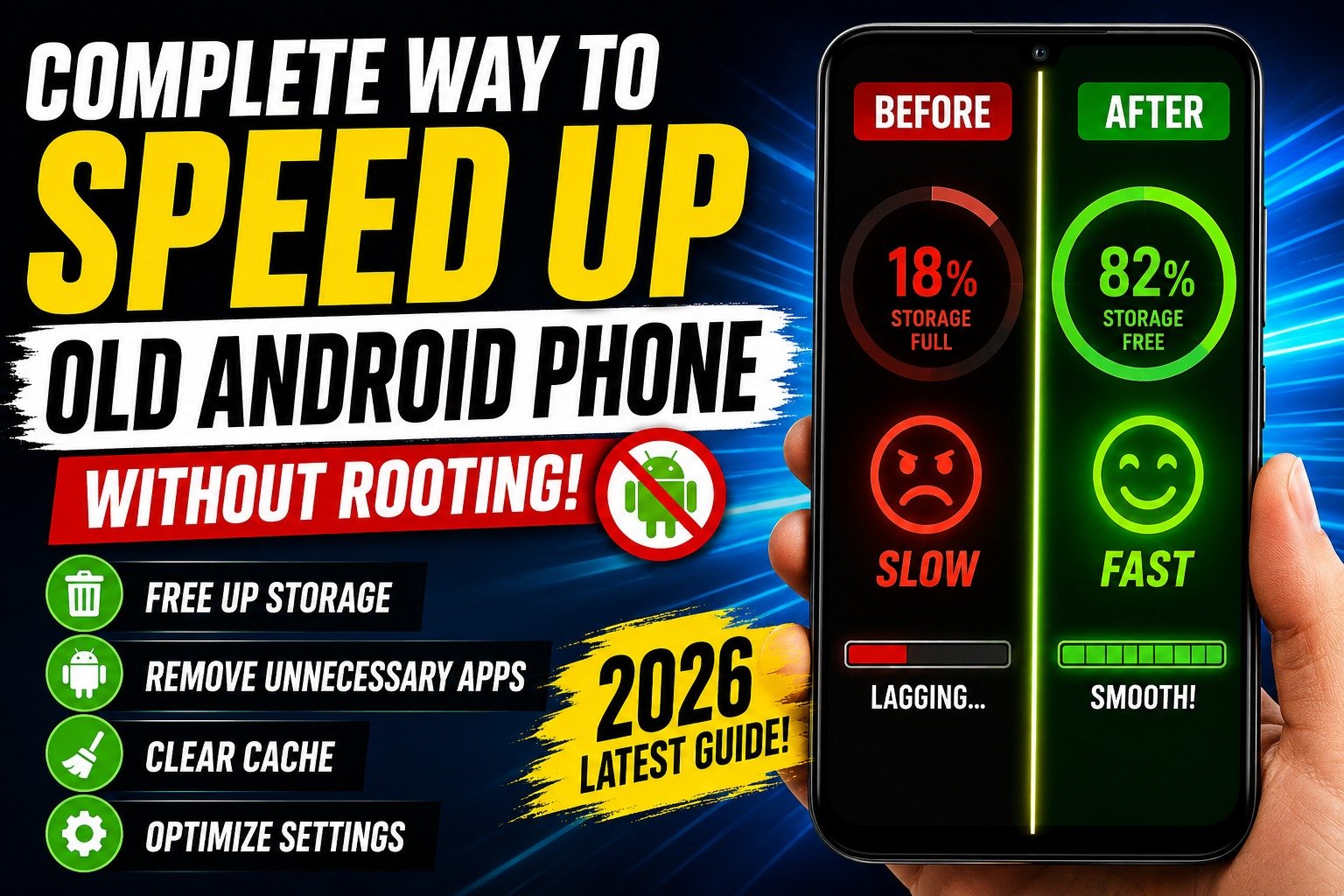
The good news is that in most cases, there’s nothing wrong with your phone. This slowness occurs due to a few common reasons, and there are solutions for them. And most importantly, you don’t need to root your phone at all. Rooting is a risky business that can void your warranty and even damage your phone. I’m speaking from experience . I once tried to root my old phone and it was permanently damaged. So, I would never give you that advice.
Why does a phone slow down? Understand the cause first
Before moving on to the solution, it’s important to understand why your phone is slow in the first place. Once you know the cause, you’ll start to understand the solution to every problem yourself.
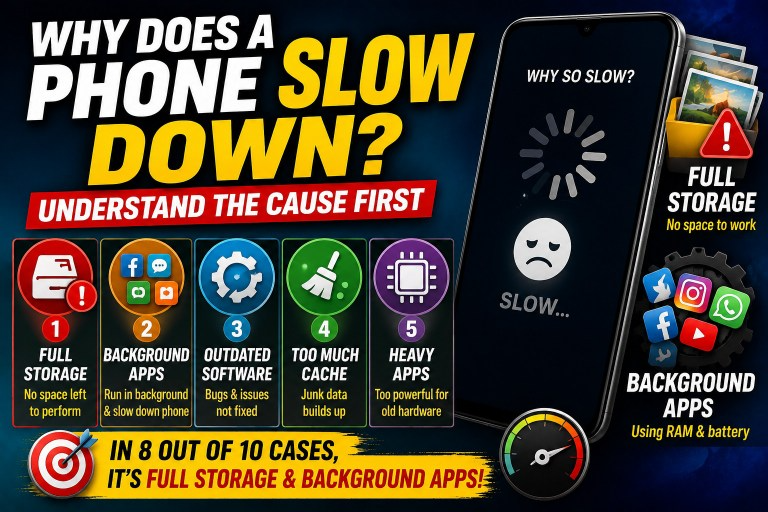
The biggest reason is full storage. When your phone’s memory is full of photos, videos, and apps, the phone doesn’t have room to work, and it slows down. The second biggest reason is apps running in the background. Many apps keep running in the background even after you close them, using up your phone’s power and RAM.
The third reason is outdated software. If you haven’t updated your phone in a while, some of the issues may be due to outdated software. The fourth reason is a buildup of too much cache data. And the fifth reason is heavy apps that are too powerful for your old phone’s hardware.
In my experience, eight out of ten times a phone’s slowness is due to just the first two things full storage and background apps. Now that you know the reasons, let’s look at the solutions to all of them one by one.
Method 1: Free up storage. This is the most important step
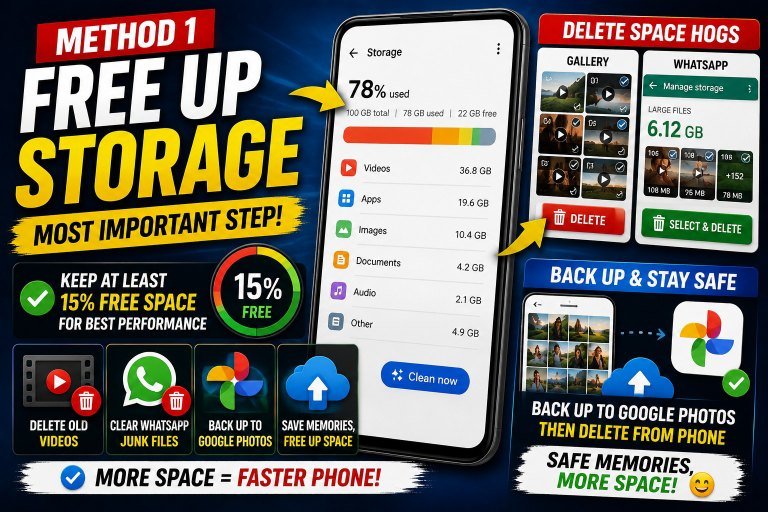
If you only want to do one thing, it should be this A full phone will always be slow, no matter what you do. Google’s own official guidelines also state that some of the phone’s storage should always be free for the system to function properly. My own experience is that when my phone’s storage drops below 15 percent, the difference starts to be clearly felt.
First, go to your phone’s Settings and open the Storage or Device Care option. Here you will see how much of your space is full and what is taking up how much space.
Old and useless videos take up the most space. Open your gallery and delete the videos that you no longer need. WhatsApp’s junk videos and photos, which keep coming up in groups, often take up several gigabytes of space. When I first checked the WhatsApp storage on my phone, I couldn’t believe that just the junk forwarded videos were taking up more than six gigabytes of space. Go to WhatsApp’s Settings and open Manage Storage under Storage and Data, and delete the large files from there.
Another great tip is to back up your important photos and videos to Google Photos and then delete them from your phone. This way, your memories will be safe and your phone will also free up space. I use this method myself and I haven’t lost a single photo in years.
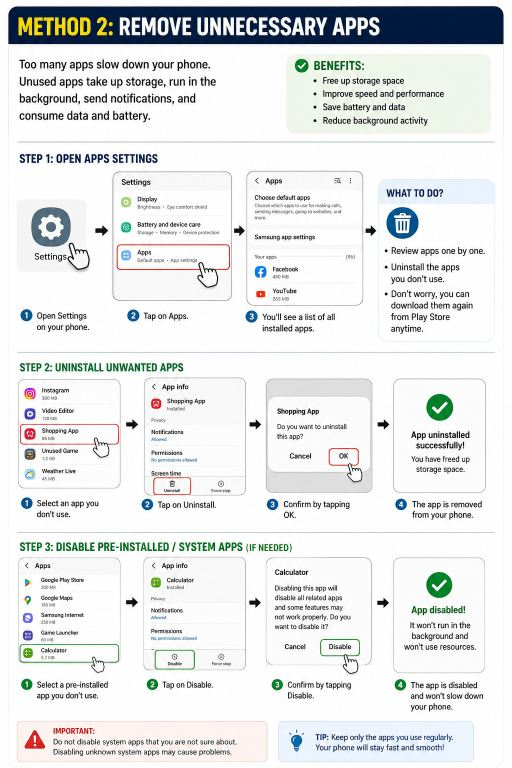
Method 2: Remove unnecessary apps
Just think honestly. How many apps do you have on your phone that you haven’t opened in months? Maybe a game you played once, a shopping app you used once, or a tool you don’t even remember anymore.
Not only do each app take up space, but many apps also run silently in the background. Some of them send notifications, some keep updating data, and all this slows down your phone.
Open Apps in your Settings. Here you will see a list of all installed apps. Go through them one by one and uninstall the apps you don’t use. Don’t worry, if you need them later, you can download them again from the Play Store.
There are some apps that come with the phone and cannot be completely removed. For such apps, use the Disable option. This will close the app and stop it from running in the background. However, keep in mind that disabling some system apps can cause problems with the phone, so only disable those that you recognize.
Method 3: Clear cache data
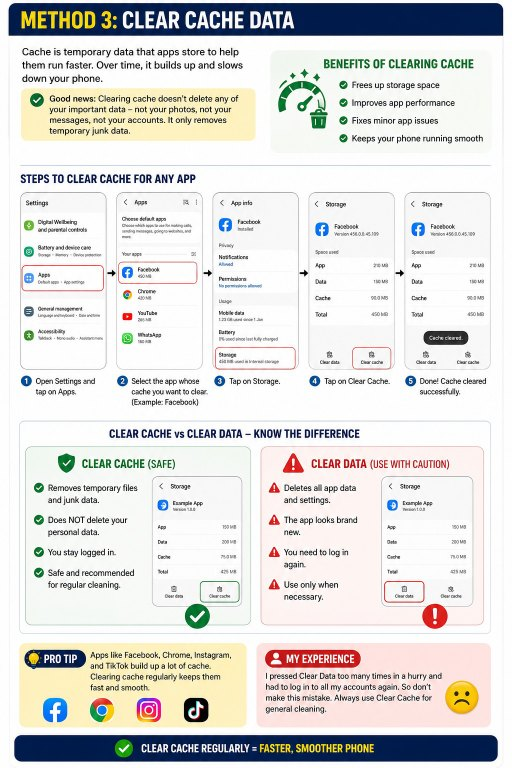
A Cache is temporary data that apps store to help them run faster. A little bit of cache is useful, but over time, it can build up and slow down your phone.
The good news is that clearing the cache doesn’t delete any of your important data — not your photos, not your messages, not your accounts. It just removes temporary junk data. I can say this with confidence because I’ve done it hundreds of times and it’s never hurt anything.
To clear the cache for any app, open Apps in Settings, then select the app you want to clear (like Facebook or Chrome, which tend to accumulate the most cache). Then go to Storage and tap Clear Cache.
Keep in mind that there’s a difference between Clear Cache and Clear Data. Clear Cache only removes temporary data and is completely safe. Clear Data makes the app look brand new and requires you to log in again. So always use Clear Cache for general cleaning. I pressed Clear Data too many times in a hurry and then had to log in to all my accounts again — so don’t make this mistake.
Method 4: Reduce or turn off animations (this trick is amazing)
This is a secret trick that few people know about, but it makes an old phone feel faster in an instant. Personally, when I first tried it, I was really surprised — the phone became as fast as if I had just bought a new one. When you open or close an app, the phone shows a little animation. It looks cute, but on an old phone, it slows everything down.
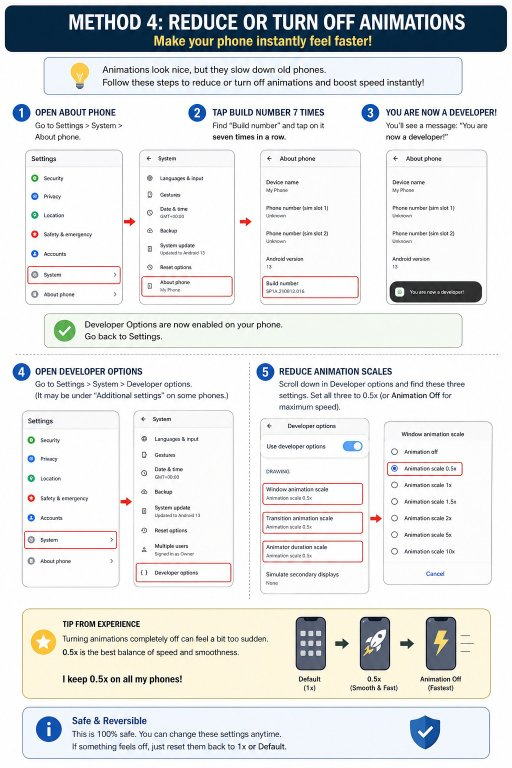
To reduce this animation, you first need to open Developer Options. Don’t worry, it’s completely safe, and I’ll walk you through each step.
First, open About Phone in Settings. Then find Build Number and tap on it seven times in a row. You’ll see a message that says “You are now a developer.” Developer Options are now enabled on your phone.
Now go back to Settings (this is usually under System) and open Developer Options. Scroll down here and find three options: Window Animation Scale, Transition Animation Scale, and Animator Duration Scale. Set all three to 0.5x, or turn Animation Off if you want the fastest speed.
A tip from experience: If completely shutting down your phone feels a little awkward, 0.5x is the best balance. I keep 0.5x on all my phones.
Method 5: Use light or “Lite” versions of apps
A big problem with older phones is that popular apps get heavy over time. Today’s Facebook, Instagram, and other apps are so power hungry that an older phone can’t handle them.
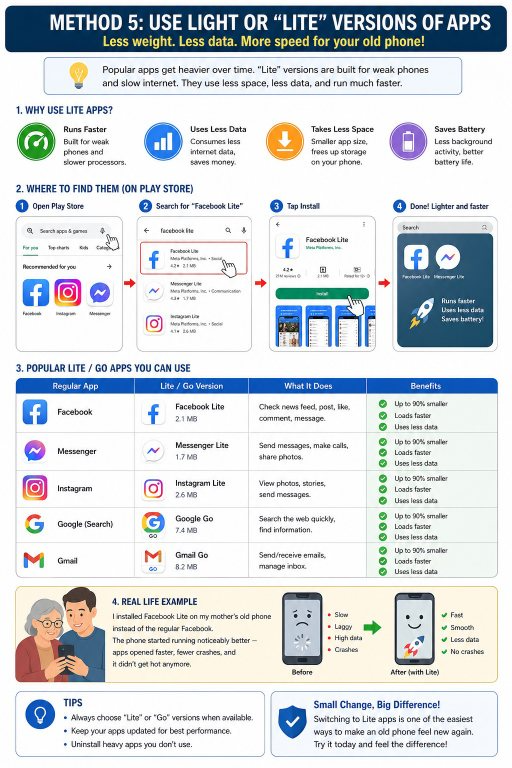
The best solution is to use “Lite” versions of these apps. These versions are specifically designed for weaker phones and slower internet. They take up less space, use less data, and run much faster on older phones.
For example, you can find Facebook Lite and Messenger Lite on the Play Store. There are also apps like Google Go and Gmail Go from Google. I installed Facebook Lite on my mother’s old phone instead of the regular Facebook, and her phone started running noticeably better. Switching to these lighter versions will significantly reduce the load on your phone.
Method 6: Keep the home screen simple
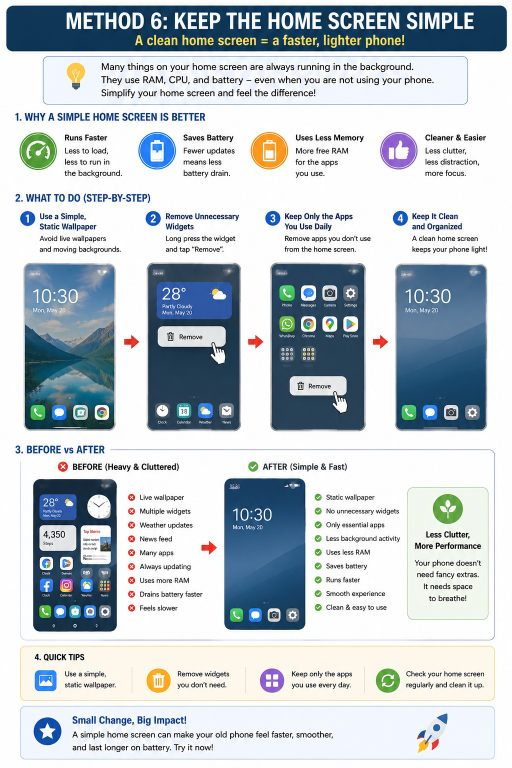
Many people don’t realize that their home screen can also slow down their phone. If you have a lot of live wallpapers, moving widgets, and weather updates on the home screen, all of these things are constantly running and using up the phone’s power.
Use a simple, static wallpaper. Remove unnecessary widgets, especially those that are constantly updating. Only keep the apps you use on the home screen that you use every day. A clean home screen not only looks good, but it also keeps the phone light.
Method 7: Update the software
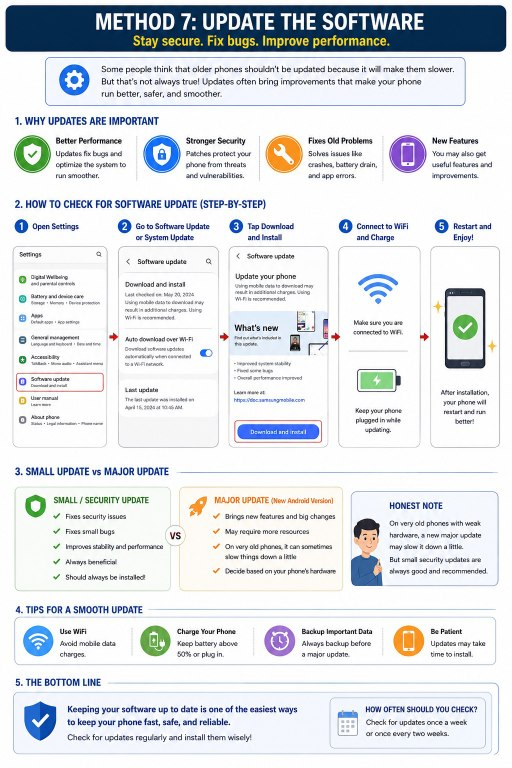
Some people think that older phones shouldn’t be updated because it will make them slower. But that’s not always true. Companies often introduce improvements in updates that improve the phone’s performance and security and fix old problems.
Open Software Update or System Update in your phone’s Settings and see if there is an update available. If so, install it over WiFi, while charging the phone.
An honest thing: On very old phones, with very weak hardware, sometimes a new major update can slow down the phone a little. But small security updates are always beneficial and should be installed.
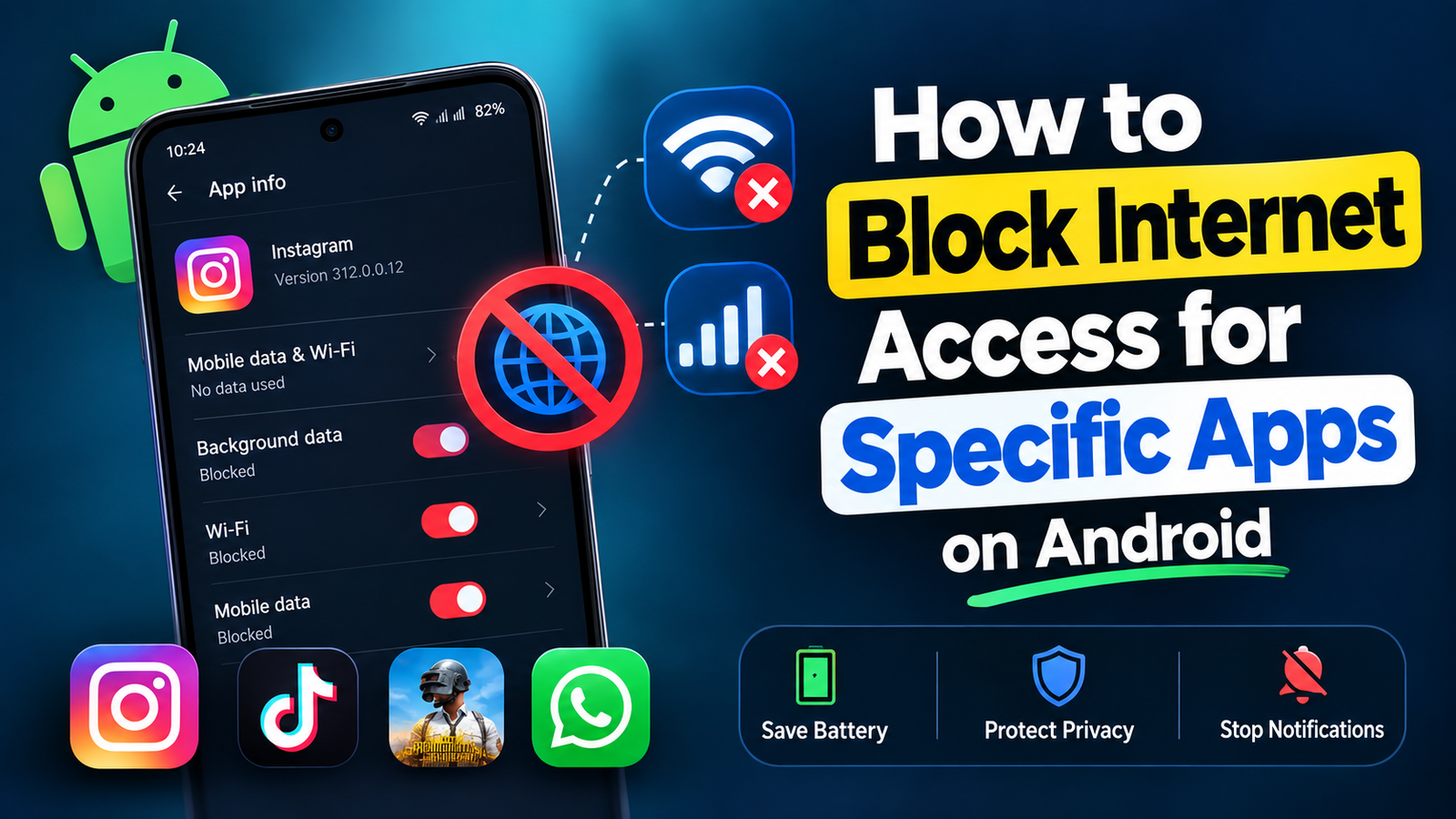
Method 8: Restrict apps running in the background
As mentioned earlier, many apps continue to run in the background even after you close them. They drain both your phone’s RAM and battery.
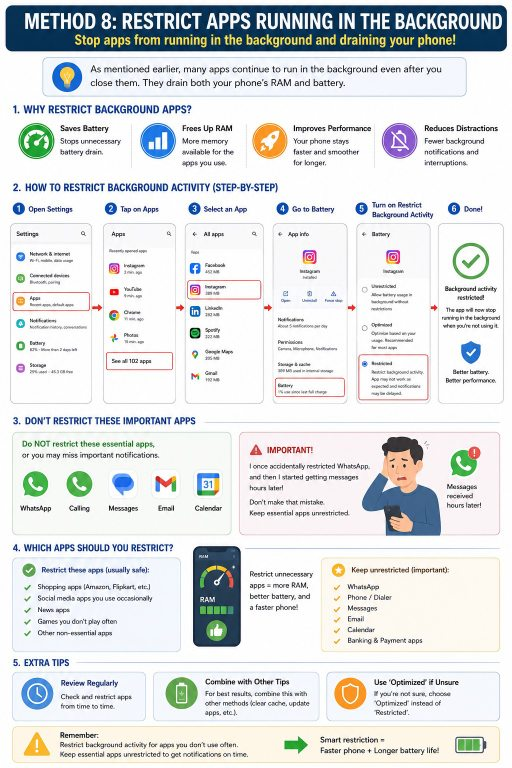
You can restrict these apps. Open Apps in Settings, select an app, and go to the Battery option and turn on Restrict background activity or Background restriction. Do this especially for apps that you use occasionally.
However, don’t limit essential apps like WhatsApp, calling, or messaging apps, or you’ll get their notifications late. I once accidentally limited WhatsApp and then started getting messages hours later so don’t make that mistake.
Method 9: Turn off unnecessary notifications
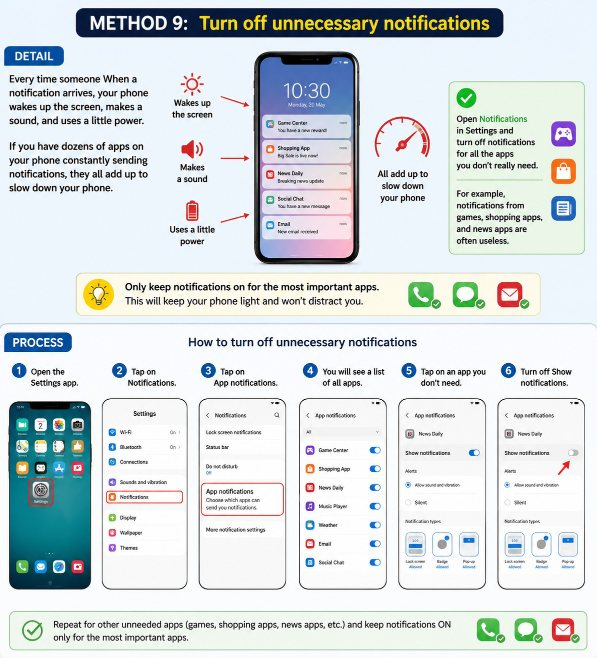
Every time someone When a notification arrives, your phone wakes up the screen, makes a sound, and uses a little power. If you have dozens of apps on your phone constantly sending notifications, they all add up to slow down your phone.
Open Notifications in Settings and turn off notifications for all the apps you don’t really need. For example, notifications from games, shopping apps, and news apps are often useless. Only keep notifications on for the most important apps. This will keep your phone light and won’t distract you.
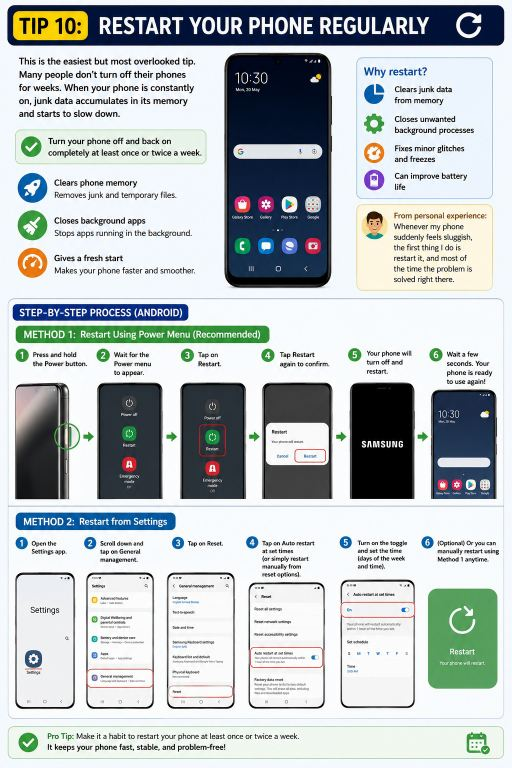
Tip 10: Restart your phone regularly
This is the easiest but most overlooked tip. Many people don’t turn off their phones for weeks. When your phone is constantly on, junk data accumulates in its memory and starts to slow down.
Turn your phone off and back on completely at least once or twice a week. This restart clears the phone’s memory, closes all the junk running in the background, and gives the phone a fresh start. Speaking from personal experience whenever my phone suddenly feels sluggish, the first thing I do is restart it, and most of the time the problem is solved right there.
Method 11: Use your phone’s builtin optimization tool
Newer Android phones have some builtin features that are specifically designed to keep your phone running smoothly. For example, a feature called Device Care or Phone Manager is present on most phones. It gives you options to clean up storage, free up RAM, and save battery all from one place.
Open it and tap on the Optimize or Clean button. It will automatically clean up junk files and background apps. It’s much safer than a thirdparty cleaner app, as it’s your phone’s own official tool, built by the company itself.
An Important Warning: Avoid Cleaner and Booster Apps
You’ll find hundreds of apps on the Play Store that claim to “clean” and “speed up” your phone, such as various “Cleaner” or “Booster” apps. My honest advice is to stay away from them.
The truth is that most of these apps actually slow down your phone. They run in the background, display ads, and can even be a threat to your privacy. I’ve tried several popular cleaner apps myself, and the result was the same every time — a slower phone and full of ads. All of the things these apps claim to do, you can do better with your phone’s own settings, as I mentioned above.
So instead of handing your precious phone over to some unknown cleaner app, trust your phone’s builtin tools.
Last resort: Factory reset (only if nothing works)
If you’ve tried all the above methods and your phone is still extremely slow, there’s one last solution left — Factory Reset. It brings your phone back to the exact state it was in when you bought it new.
But this is very important: Factory reset deletes all your data — photos, videos, apps, messages, everything. So before you do it, be sure to back up all your important data. Save your photos to Google Photos, your contacts to your Google Account, and important files to Google Drive. I always recommend this because I saw a friend who reset without a backup and lost years of photos forever.
After the backup, open System in Settings, then select Reset and Factory data reset. After the reset, your phone will be as clean and fast as a new phone.
A few habits to keep your phone fast for a long time
Now that you’ve sped up your phone, the question is, how do you keep it fast? By adopting a few simple habits, you can keep your phone from slowing down for months.
Always keep your phone’s storage at least ten percent free. Restart your phone once a week. Only install apps that you really need. Back up your photos and videos to the cloud regularly. And clear the cache of apps occasionally. These are the habits that I adopt myself, and my phones have been running well for years.
Frequently Asked Questions
Do these methods work on every Android phone?
Yes, all these methods work on Samsung, Xiaomi, Oppo, Vivo, Infinix, Tecno and all other Android phones. Just the names of some settings may vary slightly depending on the brand.
Will clearing the cache lose my data?
No. Clear Cache only removes temporary junk data. Your photos, messages and accounts remain completely safe. I am speaking from personal experience.
Is turning off animations harmful to the phone?
Absolutely not. It is completely safe and you can turn it back on whenever you want. It only reduces the visual effects, it does not affect the phone’s functionality.
Should I root my phone to speed it up?
No. Rooting is risky, can void your warranty, and can permanently damage the phone. I am speaking from experience. The methods mentioned above are sufficient without rooting.
Do cleaner apps really speed up phones?
In most cases, no. They often slow down the phone and display ads. It is better to use the builtin tools of your phone.
Final words
There is no need to despair if an old phone becomes slow, and there is no need to immediately buy a new one. I have learned from my own experience that in most cases, with a little effort and the right settings, you can speed up your phone again and that too for free, without rooting, and without any risk.
My advice is to try the first three methods mentioned above today: free up storage, remove unnecessary apps, and reduce animations. These three things alone will make a noticeable difference to your phone. Then gradually move on to the rest of the methods.
If this guide was useful to you, be sure to share it with a friend or family member whose phone has slowed down. Maybe this little tip of yours will come in handy for them, and save them from having to buy a new phone.
This article is written based on personal experience and generally available information. The names of settings may vary slightly between different phones and Android versions. Be sure to back up your data before taking any major steps (like a factory reset).