Complete How-To Guide
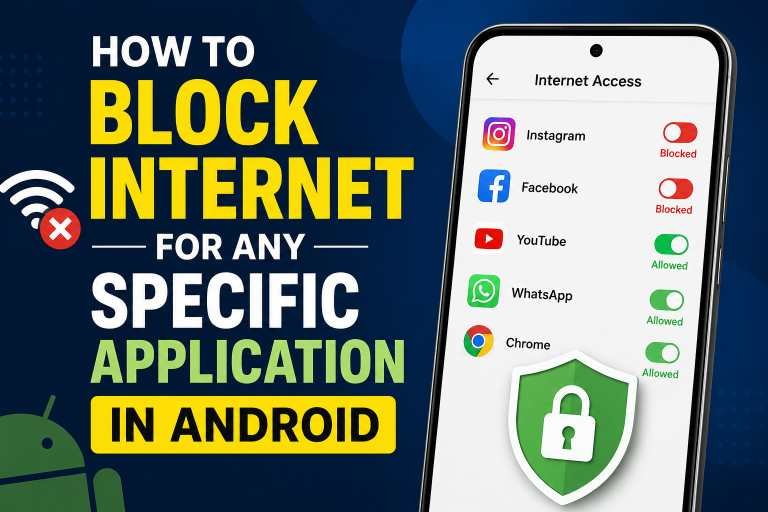
Stop Any App From
Touching the Internet
on Android
Your full breakdown of every method — built-in settings, firewall apps, and advanced tricks — to take back control of your data.
Why Would You Even Block an App’s Internet?
Every app on your phone is quietly talking to the internet — even the ones you haven’t opened in months. Some are phoning home with data you never agreed to share. Blocking that connection is one of the smartest things you can do for your privacy, your battery life, and your data bill.
Think about it. You install a flashlight app, a wallpaper changer, or a simple calculator. Why on earth does any of those need internet access? The answer, unfortunately, is often advertising or data collection. The app sends tiny pings to remote servers, loads invisible ads, or tracks your location in the background — all while you have no idea it’s happening.
Then there are legitimate apps you genuinely use and love, but you want them to work only on Wi-Fi because your mobile data plan isn’t unlimited. Or maybe you have a kid with a tablet and you want their game apps to work offline only, with no way to rack up in-app purchases. Or perhaps a specific app behaves strangely online but works perfectly fine without a connection.
Whatever your reason, Android gives you several ways to handle this — from dead-simple built-in settings to powerful third-party firewall apps. This guide walks through all of them, clearly and honestly, so you can pick the one that fits your situation.
Know Your Options at a Glance
Before diving into the step-by-step guides, here’s a quick colour-coded look at the main methods and what makes each one stand out.
Android Data Usage Settings
Native Android feature. Blocks mobile data per app. Available on every phone without installing anything extra.
NetGuard — No-Root Firewall
Open-source, zero root required, blocks both Wi-Fi and mobile data per app. The gold standard for most users.
NoRoot Firewall
Simple, clean UI. Blocks internet per app via a local VPN. Great for beginners who want a straightforward toggle.
Private DNS / AdGuard DNS
Block whole categories of traffic at the DNS level. Ideal for blocking ads and trackers without touching individual apps.
Island / Shelter App
Sandboxes apps in an isolated Work Profile. Apps inside can be frozen or restricted from network access entirely.
Use Android’s Native Data Restriction
Every Android phone, regardless of brand, has a built-in way to block an app’s mobile data access. It’s buried a couple of menus deep, but once you find it, it’s the fastest solution available — no downloads needed.
The limitation is real though: this method only blocks mobile data. The app will still have full Wi-Fi access. If you’re fine with that trade-off, it’s perfect.
-
01
Open Settings
Go to your phone’s main Settings app. The gear icon — you know the one.
-
02
Tap “Network & Internet” or “Connections”
Samsung calls it Connections. Stock Android calls it Network & Internet. One or the other, it’s the same place.
-
03
Go to “Data Usage”
Then tap “Mobile Data Usage” to see a list of all installed apps sorted by how much data they’ve consumed.
-
04
Select the App You Want to Restrict
Tap on any app from the list to open its individual data settings.
-
05
Toggle Off “Allow App While Data Saver On” or “Background Data”
Turning off Background Data stops the app from using mobile data when it’s not actively open. You can also enable Data Saver mode globally for even tighter control.
NetGuard — The Best Free Firewall App
NetGuard is the app most Android enthusiasts quietly recommend to everyone. It’s open-source, has no ads, and works by creating a local VPN on your device — meaning it intercepts all traffic before it can leave your phone and checks it against your rules. Nothing actually goes to a remote server; it all stays on your device.
Best part? You can block each app separately on mobile data AND Wi-Fi. Two separate toggles per app, total control.
-
01
Download NetGuard from the Play Store
Search “NetGuard” — it’s the one by Marcel Bokhorst. Also available on F-Droid with all pro features unlocked for free.
-
02
Grant VPN Permission
When you open NetGuard for the first time, it asks to set up a VPN connection. Tap OK. This is local — no outside server is involved.
-
03
Enable the Master Switch
Tap the big toggle at the top. A key icon will appear in your notification bar, confirming NetGuard is active.
-
04
Scroll Through Your App List
Every installed app is listed. You’ll see two icons next to each: a mobile signal icon and a Wi-Fi icon.
-
05
Tap the Icons to Block
Tapping the mobile icon blocks that app’s mobile data. Tapping the Wi-Fi icon blocks it on Wi-Fi too. Both blocked = zero internet access.
★★★★★ 4.5 · 1M+ downloads
NoRoot Firewall — Simple Toggle Approach
If NetGuard feels like too many options, NoRoot Firewall is the stripped-back version. Install it, allow the VPN, and you get a clean list of your apps with simple Allow/Deny toggles. That’s genuinely it. No settings to get lost in, no advanced configurations to accidentally break something.
It also shows you every connection attempt an app makes in real time — so you can see exactly which server an app is trying to reach when you open it. Educational and eye-opening.
-
01
Install NoRoot Firewall from Play Store
Free download, no in-app purchases needed for basic per-app blocking.
-
02
Start the Firewall
Tap “Start” on the home screen. Accept the VPN permission when prompted.
-
03
Go to “Apps” Tab
You’ll see all your apps listed. Each has a toggle for Wi-Fi and another for mobile data.
-
04
Disable the Toggle for Apps to Block
Switch off either or both toggles depending on whether you want to block mobile data, Wi-Fi, or both completely.
Private DNS with AdGuard or NextDNS
This approach doesn’t block individual apps in the traditional sense — instead, it blocks entire categories of domains (ad servers, trackers, analytics) at the DNS level. When an app tries to reach an ad server, your phone asks the DNS “where is this server?” and the DNS simply says “doesn’t exist.” The connection never happens.
Android 9 and above have a built-in “Private DNS” option that makes this setup effortless.
-
01
Open Settings → Network & Internet → Advanced → Private DNS
On Samsung, it’s under Connections → More Connection Settings → Private DNS.
-
02
Select “Private DNS Provider Hostname”
Choose the manual entry option instead of automatic.
-
03
Enter Your DNS Provider
For AdGuard, type: dns.adguard.com — or for NextDNS, use your personal NextDNS hostname from their website.
-
04
Save and Test
Your phone will show “Private DNS active” when it’s working. Open a website or app — ads and trackers should now be blocked system-wide.
Isolate Apps Using Island or Shelter
Island and Shelter are apps that create a Work Profile on your Android phone — a separate, sandboxed environment where apps are completely isolated from your main profile. You can freeze apps inside it with one tap, which instantly cuts off all their background activity, including network access.
This is perfect for apps you want to use occasionally but absolutely don’t want running in the background.
-
01
Install Island (Play Store) or Shelter (F-Droid)
Both do essentially the same thing. Island has a slightly more polished UI.
-
02
Set Up the Work Profile
Follow the on-screen setup — it creates an isolated profile on your device. You’ll see a briefcase icon on cloned apps.
-
03
Clone the App You Want to Isolate
Move or clone the target app into the Work Profile from within Island/Shelter.
-
04
Freeze the App When Not in Use
Long-press the app in Island and tap “Freeze.” The app becomes completely dormant — no network access, no background activity — until you unfreeze it.
Choosing the Right Method for You
Here’s an honest breakdown so you don’t spend time on something that doesn’t fit:
Android Data Settings
Zero learning curve. Built into every phone. Does the job for mobile data without installing anything.
NetGuard
Free, open-source, blocks both Wi-Fi and mobile, works without root. The community favourite for good reason.
NetGuard + Private DNS
The combo of per-app firewall rules plus DNS-level ad/tracker blocking covers almost every angle.
Common Questions & Honest Answers
Will blocking internet break the app?
It depends on the app. Some apps work perfectly offline — games, calculators, note-taking apps, PDF readers. Others rely on internet for core features: maps need data for navigation, streaming apps obviously need a connection to play content. You won’t damage anything by trying — the app will either work or it’ll show a “no connection” message. You can always unblock it.
Can apps bypass a firewall app?
On an unrooted phone, a poorly written firewall can theoretically be bypassed by apps with system-level permissions. NetGuard and similar apps are generally solid against regular apps, but system apps or pre-installed manufacturer bloatware sometimes have enough privileges to route around them. Root-based firewalls like AFWall+ close that gap completely.
Does this affect the app’s notifications?
Yes — if an app needs internet to receive push notifications (which most do), blocking its internet access will stop those notifications too. Keep that in mind before blocking messaging apps or anything where you need real-time alerts.
Does it save battery life?
Genuinely, yes. Background data usage is a leading cause of battery drain on Android. Blocking apps from making network calls in the background means they can’t wake the CPU to check in with their servers every few minutes. Users commonly report noticeable improvement after restricting a handful of poorly behaved apps.
Your Phone, Your Rules
The reality is that most Android users have no idea how much their apps are talking behind their backs. Every few minutes, dozens of apps are pinging servers, pulling ads, sending analytics, and refreshing feeds — all without your explicit permission, all eating into your battery and data.
The good news is that you don’t have to accept it. Whether you’re comfortable with just flipping a switch in Android Settings or you want to go all-in with NetGuard and a custom DNS, there’s a solution at exactly the right complexity level for you.
Start simple — block one or two apps you know don’t need internet and see how it goes. Chances are you won’t even notice the difference in how those apps behave, but you’ll absolutely notice the difference in your data usage and battery life. Once you see it working, you’ll wonder why you didn’t do it sooner.
Take back your network. It was yours to begin with. 📱🔒